
A gaming keyboard is one of the most important tools in a gamer’s setup. Whether you play fast-paced shooters, competitive MOBAs, or immersive RPGs, the performance of your keyboard can directly affect your gameplay experience. Over time, however, even the best keyboards can lose responsiveness or feel less comfortable to use. Fortunately, there are several ways to enhance and maintain your keyboard’s performance for smoother, faster, and more accurate gaming.
1. Keep Your Keyboard Clean
Why It Matters
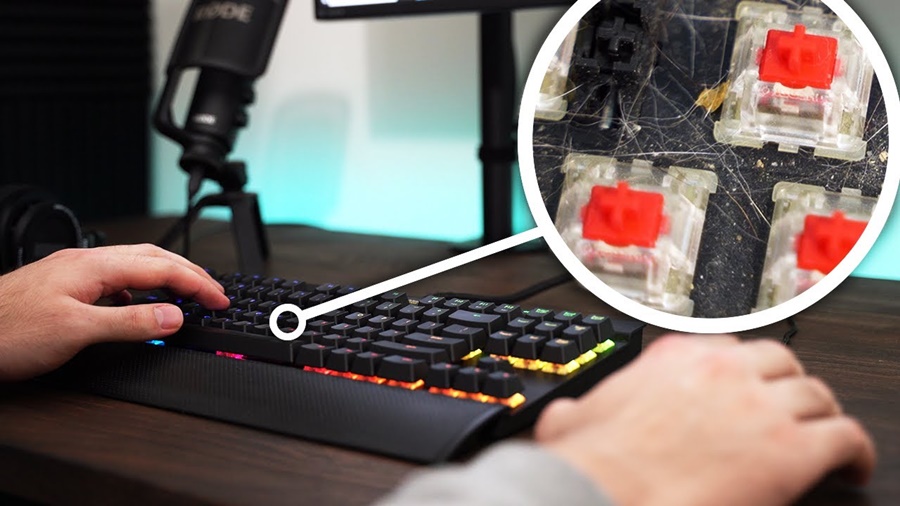
Dirt, dust, and debris can build up between the keys, causing sticky or unresponsive buttons. Regular cleaning not only improves performance but also extends the keyboard’s lifespan.
How to Do It
- Unplug the keyboard before cleaning.
- Use compressed air or a soft brush to remove dust and crumbs between keys.
- For deeper cleaning, gently remove keycaps (if your keyboard allows it) and wipe the surface with isopropyl alcohol on a microfiber cloth.
- Make sure everything is completely dry before plugging it back in.
Tip: Clean your keyboard every few weeks if you play daily.
2. Update or Reinstall Drivers
Why It Matters
Drivers control how your operating system communicates with your keyboard. Outdated or corrupted drivers can cause input lag or missed keystrokes.
How to Do It
- Go to your keyboard manufacturer’s website (e.g., Logitech, Razer, Corsair).
- Download and install the latest firmware and driver updates.
- Restart your computer after installation to apply changes.
Bonus: Some gaming keyboards have dedicated software that allows custom key mapping, macros, and lighting effects keeping this software updated ensures optimal performance.
3. Optimize Keyboard Settings
Adjust Key Response Settings
Some gaming keyboards allow you to change the actuation point (how far a key must be pressed to register). Lowering this distance can make keystrokes faster, improving reaction times in competitive games.
Enable Game Mode
Most gaming keyboards include a Game Mode that disables certain keys (like the Windows key) to prevent accidental interruptions mid-game.
Customize Macros
If your keyboard supports macro recording, you can assign complex actions or combos to a single key reducing repetitive strain and increasing efficiency.
4. Reduce Input Lag
Check USB Connection
Always connect your keyboard directly to your PC’s USB port rather than through a hub. This minimizes signal delay.
Use a High-Polling Rate
Gaming keyboards often feature adjustable polling rates (e.g., 500Hz or 1000Hz). A higher rate means faster data transmission between the keyboard and the computer, improving responsiveness.
Disable Background Applications
Too many background processes can cause input lag. Before gaming, close unnecessary programs to ensure your system focuses its resources on the game.
5. Maintain Firmware and Software
Manufacturers regularly release firmware updates to fix bugs and improve performance.
- Check your keyboard’s companion app or website regularly.
- Follow instructions carefully when updating firmware to avoid damaging your keyboard.
6. Improve Your Typing and Keypress Technique
Practice Efficient Keypresses
Press keys with consistent force slamming keys can wear out switches faster.
Learn Keyboard Shortcuts
Understanding your keyboard layout and shortcuts helps you play more efficiently and react faster in games.
7. Consider Hardware Upgrades
If your keyboard is older or has worn-out switches, it may be time to upgrade components or invest in a new model.
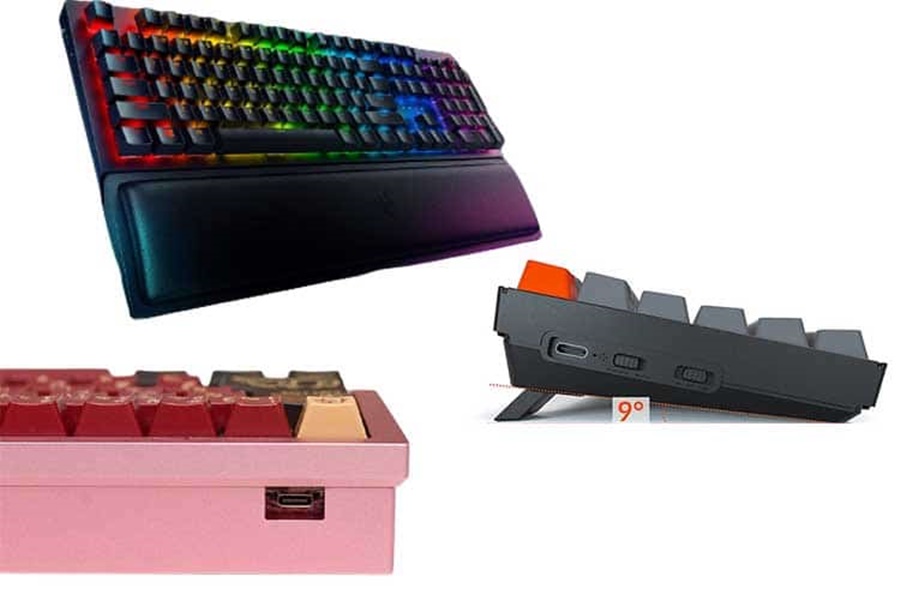
- Switch Type: Mechanical switches (e.g., Cherry MX, Razer, Gateron) offer different feels choose one that suits your gaming style.
- Keycaps: Replace old or worn keycaps with PBT or double-shot ABS caps for better durability and feel.
- Cable: Use a high-quality braided cable or consider a wireless keyboard with low-latency connection.
8. Use a Proper Gaming Surface
A stable, non-slip surface ensures consistent keyboard placement. Consider using a large mouse and keyboard pad to prevent movement during intense gameplay.
Conclusion
Improving your gaming keyboard’s performance doesn’t always require buying new hardware. With regular cleaning, software updates, optimized settings, and proper technique, you can keep your keyboard running smoothly and performing at its best. Whether you’re a casual gamer or a professional competitor, maintaining your keyboard ensures that every keystroke counts helping you stay one step ahead of the competition.