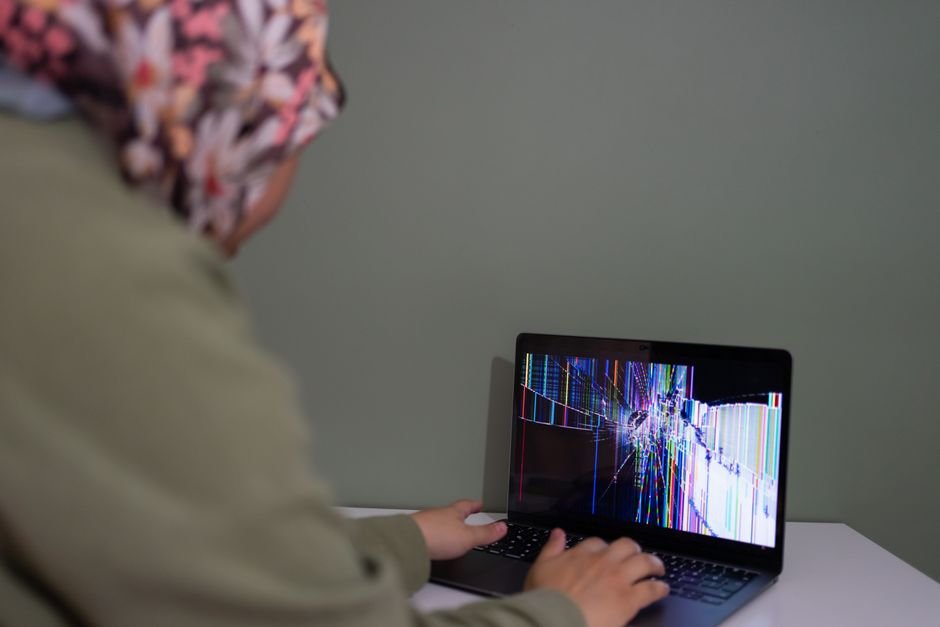
Seventy-five percent of gamers experience issues with their monitor display at some point, which can significantly disrupt gameplay. Even top-tier hardware can’t compensate for a poorly performing monitor, so it’s vital to address these common problems head-on with effective solutions.
Here are the seven most prevalent display problems with gaming monitors and how to resolve them effectively.
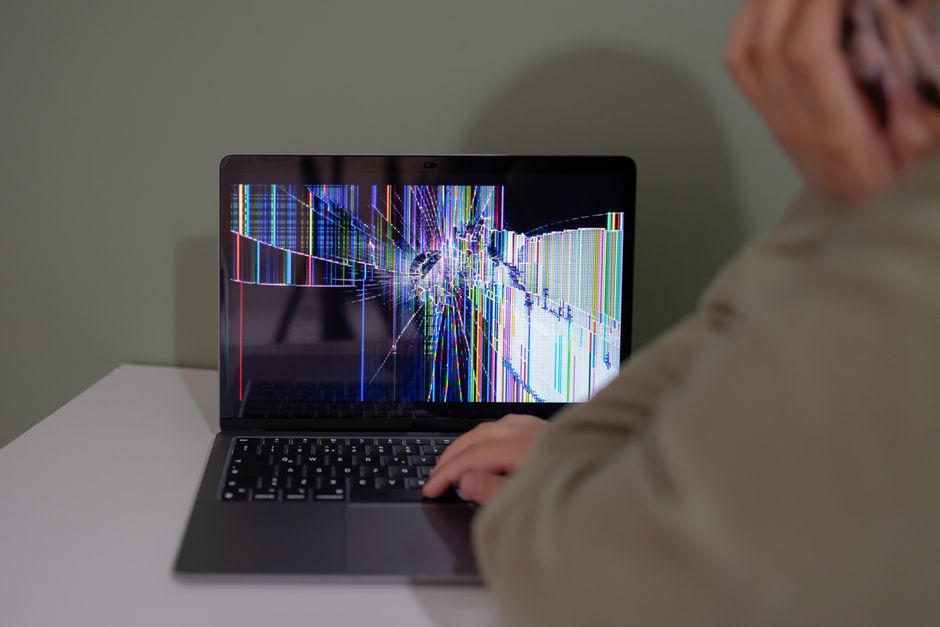
1. Screen Flickering
Screen flickering can be a major distraction, especially when you’re trying to focus on a game. This issue often arises from an unstable refresh rate or a faulty connection. Typically, gamers using high-refresh-rate monitors can encounter this when the settings don’t match the specifications of their graphics card. This problem generally affects those who switch between different refresh rates frequently.
To mitigate flickering, ensure that your monitor’s refresh rate aligns with your graphics settings. A simple adjustment in the display settings can save you from a frustrating gaming session.
2. Resolution Issues
Resolution problems often manifest as blurry images or an improper aspect ratio. This situation primarily happens if the display settings do not match the native resolution of your monitor. It’s a common mistake among gamers who upgrade their graphics card or switch to a new monitor.
The GPUs today can output impressive resolutions, but you need to ensure your settings reflect this to avoid a jarring visual experience.
To avoid resolution headaches, always set your display to the native resolution specified by your monitor’s manufacturer. This simple step will enhance visual clarity significantly.
3. Color Calibration Problems
Having poorly calibrated colors can ruin the immersion of your gaming experience. Often, monitors come with incorrect color presets out of the box which can result in washed-out games or overly saturated colors. This issue typically affects competitive gamers where color differentiation is crucial for spotting opponents or objects in games.
Invest some time in calibrating your monitor using built-in tools or third-party software. A good habit is to regularly adjust these settings, especially if you notice your display becoming less vibrant over time.
4. Refresh Rate Problems
Gaming on a monitor that doesn’t match your graphics card’s capabilities can lead to suboptimal performance. There are many cases where gamers unknowingly use a monitor with a lower refresh rate than what the GPU can deliver. This manifests as motion blur or ghosting during fast-paced gameplay, something I’ve experienced myself!
To get the most out of your display, ensure that you select the highest refresh rate supported by both your monitor and GPU. You can check and adjust this in your graphics control panel.
5. Input Lag Issues
Input lag can be particularly frustrating during competitive gaming. This delay can stem from various settings and can ruin your response time. It’s often a problem with gamers using post-processing effects that the monitor tries to implement, adding unnecessary delays. Many do not even realize that they have these effects enabled during high-stakes gameplay.
If you find input lag ruining your game, switch to a gaming mode in your monitor settings which minimizes unnecessary processing. This can significantly enhance responsiveness.
6. Display Connection Problems
Improper connection can lead to a myriad of problems such as flickering, color distortion, or no signal at all. This issue commonly arises when gamers use faulty cables, adapters, or ports that don’t fully support their monitor’s specifications. A casual gamer may overlook checking their cables’ integrity.
Always ensure you’re using high-quality cables and check for any signs of damage. Using the correct type of cable, for instance, DisplayPort over HDMI when possible, can make a significant difference in performance and reliability.
7. Power Supply and Compatibility Issues
Lastly, sometimes the issue lies within the power supply or compatibility with your system. Incompatibility can lead to erratic behavior, including power failures or inconsistent performance. This is a concern for gamers who upgrade one component (like the GPU) without ensuring the rest of their setup is adequately powered.
Always check your power supply specifications to ensure it can handle your monitor and other hardware. Keeping track of wattage and compatibility will save you from future headaches.
How to Choose
An IPS monitor with a 144Hz refresh rate is a solid choice for most gamers seeking a balance of color accuracy and performance. For competitive players, a TN panel might be better due to its lower response times, while those prioritizing visual fidelity should consider an OLED display.
Frequently Asked Questions
Why is my gaming monitor screen black?
A black screen on your gaming monitor can be caused by various issues, including a loose connection, incorrect input source selection, or power problems. Ensure that all cables are securely connected and that the monitor is set to the correct input source.
How do I fix a flickering monitor screen?
Flickering on a monitor can often be resolved by checking the cable connections and replacing any faulty cables. Additionally, adjusting the refresh rate in the display settings or updating your graphics drivers can help eliminate flickering.
What causes a monitor to show no signal?
A ‘no signal’ message typically indicates that the monitor is not receiving a video input from the computer. This can happen due to a faulty or loose connection, incorrect input source settings, or an issue with the graphics card.
Can refresh rate affect display quality?
Yes, the refresh rate can significantly affect display quality, especially in gaming. A higher refresh rate leads to smoother motion and better responsiveness, enhancing the overall gaming experience.
How to calibrate colors on a gaming monitor?
To calibrate colors on a gaming monitor you can use built-in calibration tools provided by the monitor or operating system. For more precise adjustments, consider using calibration software or a colorimeter to achieve accurate color reproduction.
For more information on troubleshooting gaming monitor display issues, refer to the resources available.