A delay of even 100 milliseconds can throw off your gaming performance, making it nearly impossible to react in real-time. This audio latency disrupts your gameplay flow and can be frustrating. Fortunately, there are straightforward methods to minimize this issue and improve your gaming experience.
Most of the time, latency issues stem from your audio drivers, buffer size settings, or sound card settings. These elements play a crucial role in how sound is processed and transmitted to your headphones or speakers. Let me guide you through the steps to troubleshoot and improve your audio performance, it’s easier than you might think.

Driver Updates Matter
One of the first things you should check is whether your audio drivers are up to date. Outdated drivers can lead to all sorts of problems, including increased audio latency. You can manually update drivers through your device manager, or visit the manufacturer’s website for your sound card or motherboard to download the latest versions.
This could save you a lot of headaches, as updated drivers often include performance improvements and bug fixes.
After updating, you may notice an immediate improvement. I often find that newer drivers help my system communicate better with my hardware. If you’re using a USB sound card or external DAC, ensure those drivers are updated as well. Skipping this step might seem trivial, but it’s one of the most impactful quick fixes.
Buffer Size Settings: A Key Configuration
Next up is adjusting your buffer size settings. The buffer is the amount of sound data processed before it reaches your speakers or headphones. If it’s set too high, you might experience lag; too low, and you risk dropouts. The ideal size can vary, but a setting between 128 and 256 samples often hits the sweet spot for gaming.
Access these settings through your audio control panel. If you’re using a dedicated sound card, it may have its own software. Play around with the settings and test your audio. Lowering the buffer size can drastically decrease latency but remember that too low a setting could introduce crackling sounds if your system can’t handle it. Finding that balance is key.
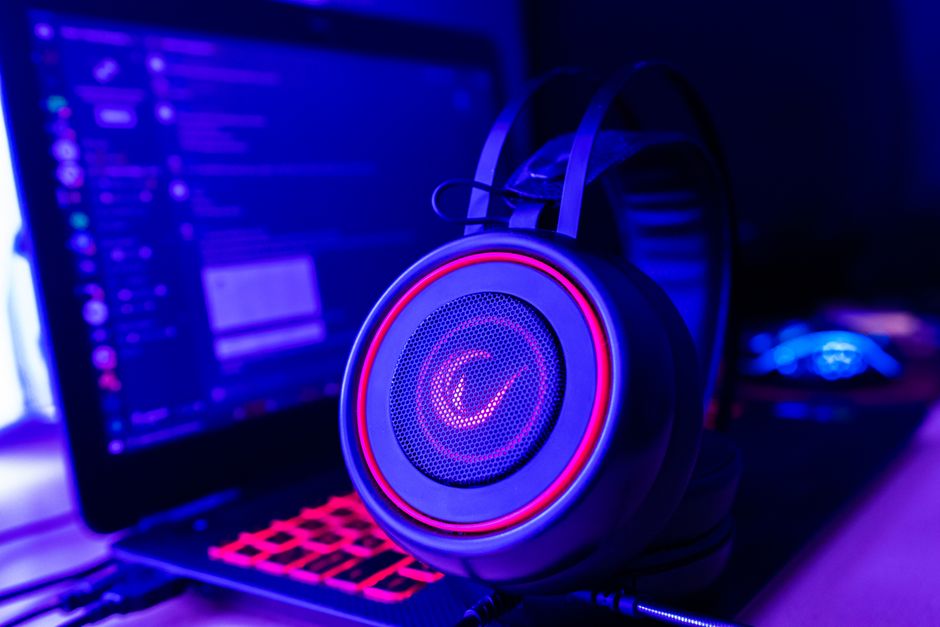
Check Your Sound Card Settings
Speaking of sound cards, ensuring they’re configured correctly can make a significant difference. Most sound cards come with configuration software that allows you to adjust sample rates and latency. A common mistake is running the card at a high sample rate when it doesn’t improve quality in gaming scenarios. Setting it to 44100 Hz might be ideal.
It’s a common frequency that provides excellent quality while keeping latency down.
Sometimes, enabling features like “exclusive mode” in audio settings can further reduce latency. This allows your games to take full control of the audio device, bypassing any software that could introduce delays. Just make sure to test how different configurations impact your gaming experience.
Network Optimization for Online Games
If you’re playing online games, latency can also come from your network connection. A poor internet connection can result in audio and video sync issues. Using a wired connection instead of Wi-Fi can significantly reduce packet loss and latency. Additionally, check your router settings and ensure it’s prioritizing traffic to your gaming device.
Using Quality of Service (QoS) settings can enhance your gaming experience. By prioritizing gaming traffic, you ensure that your gaming devices have the bandwidth they need, reducing lag. This is especially helpful if you have multiple devices connected to your network.
For more, read about audio setup.
Final Thoughts: Tackle Latency Head-On
For the best results, prioritize updating your audio drivers and adjusting your buffer size. Gamers who frequently play online should also focus on enhancing their network connection for optimal performance. Tinker with these settings to find what works best for your unique setup and learn more about how to fix audio latency in gaming.
Frequently Asked Questions
How do I fix audio latency on my gaming PC?
To fix audio latency on your gaming PC, start by updating your audio drivers and ensuring that your sound card settings are optimized for low latency. You can also try adjusting the buffer size in your audio settings and disabling any audio enhancements or effects that may introduce delay.
Why is there a delay in my gaming sound?
A delay in gaming sound can be caused by factors such as high buffer sizes, outdated drivers, or the use of audio enhancements that process sound. Additionally, using complex audio settings can further increase latency, which disrupts the synchronization between visuals and audio.
Can network issues cause audio lag in games?
Yes, network issues can lead to audio lag in online games, particularly if the game relies on streaming audio over the internet. High latency, packet loss, or poor connection stability can all affect the timing of audio delivery in multiplayer environments.
What settings reduce audio latency in gaming?
To reduce audio latency in gaming, lower the buffer size in your audio settings, which decreases the time it takes for sound to be processed. Additionally, enabling options like 'Exclusive Mode' in your sound settings can sometimes help minimize latency.
Is wired or wireless better for gaming audio?
Wired connections are generally better for gaming audio as they provide lower latency and more reliable sound quality compared to wireless options. Wireless setups can introduce additional lag and may be affected by interference, making them less suitable for competitive gaming.