A poorly set up gaming microphone can result in frustrating audio quality that detracts from your overall experience. Paying attention to critical factors like mic sensitivity and noise cancellation can mean the difference between a muddled sound and crystal-clear audio.
When it comes to how to set up a gaming microphone, you want a foolproof method that not only enhances your voice clarity but also minimizes unwanted sounds. Many people choose a mic without considering other essential equipment like an audio interfacewhich can significantly impact sound quality. Here’s how to ensure your gaming mic setup is optimized for the best performance.

Choosing the Right Gaming Microphone
First, the choice of microphone is critical. Most beginners opt for a standard USB microphonewhich is convenient and fairly easy to set up. However, for those looking for higher quality, XLR microphones are the gold standard because they offer greater versatility in sound editing. A USB mic can be a great start, especially if you’re gaming on a budget.
But as you grow, you may want to invest in an audio interface to utilize an XLR microphone, giving you the option to adjust sound levels more precisely.
Another aspect to consider is the pickup pattern of the microphone. Best-selling models often feature cardioid patterns, which are designed to focus on sound coming from directly in front of the mic while reducing noise from the sides and rear. For someone like him who’s been through different setups, I highly recommend sticking to cardioid pickups for gaming.
They help ensure that even in a noisy environment, your voice remains clear.
Essential Equipment Beyond the Mic
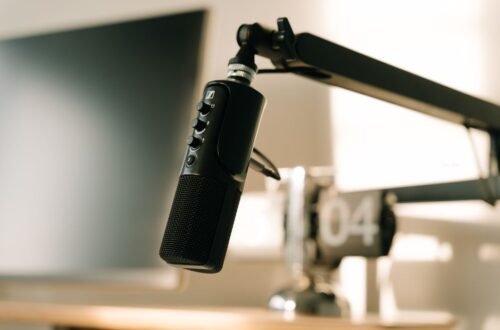
Getting a fantastic microphone is only part of the equation. A quality pop filter is vital. This accessory mitigates plosive sounds that can distort your recordings, especially when projecting. Pairing your mic with a boom arm or a shock mount can further reduce vibrations and keep your mic steady, ensuring clean audio input at all times.
On top of this, consider investing in an audio interface. This piece of equipment will convert the microphone’s analog signal into a digital one that’s suitable for your computer. An interface often allows you to adjust mic sensitivity and can greatly improve audio quality compared to directly connecting a USB mic.

Step-by-Step Microphone Setup Guide
Setting it all up may seem intimidating at first, but breaking it down into easy steps makes the process manageable. Start by positioning your microphone about six inches from your mouth, angled slightly towards you. This position helps capture your voice naturally while minimizing background noise.
A rule of thumb is to speak loudly but not too close; being closer than two inches can lead to distortion.
Next, plug in your microphone and open your software settings. If using an audio interface, follow the instructions provided with it to route the mic input correctly. Adjust the gain levels initially to prevent clipping, which distorts audio quality. Microphone calibration can usually be done in the software you use for gaming or streaming; just ensure the input levels are peaking below -6 decibels.
Optimizing for Noise Cancellation
Noise cancellation is crucial in a gaming setup, especially if you live in a noisy environment. Depending on the mic and software, you’ll often find features designed to reduce background sounds. Make sure you enable these settings to further filter out distractions. Remember, the goal is to make your voice sound as clean as possible without unwanted interruptions.
Alongside software adjustments, you may want to invest in sound-dampening materials for your gaming space. Basic items like rugs, curtains, or foam panels can help reduce echo and further improve audio quality. A quiet environment will complement the mic settings you’ve configured, leading to the best sound output.
Final Adjustments and Tips
After establishing your initial setup, don’t be afraid to tweak settings over time. Regularly revisit your audio levels and calibration every few weeks or after significant changes to your setup. It’s often the little adjustments that lead to noticeable improvements in sound quality.
If you’re also dealing with common audio issues, I have a detailed guide on that here: Audio Troubleshooting for Gamers. With the right setup and careful calibration, you will find yourself enjoying not just better sound but an elevated gaming experience.
There is more on microphone for streaming elsewhere on the site.
Our write-up on picks worth picks up where this leaves off.
Frequently Asked Questions
What is the best way to set up a gaming microphone?
The best way to set up a gaming microphone is to position it close to your mouth, ideally 6-12 inches away, while keeping it at an angle to reduce plosive sounds. Additionally, ensure the microphone is connected securely to your computer or gaming console and select the right input settings in your audio software.
Why is my gaming microphone not picking up sound?
Your gaming microphone may not be picking up sound due to improper connections, muted settings, or misconfigured audio input settings in your system. Check to ensure that the microphone is plugged in correctly, that it is set as the default input device, and that it is not muted.
How can I improve my gaming microphone sound quality?
To improve your gaming microphone's sound quality, consider using a pop filter to reduce unwanted noises, adjust the gain settings, and use soundproofing materials to minimize background noise. Additionally, ensure you're in a quiet environment and experiment with microphone placement.
Is a USB or XLR microphone better for gaming?
A USB microphone is generally more convenient and easier to set up for casual gamers due to its plug-and-play capability. However, an XLR microphone offers better sound quality and flexibility for professional setups, making it ideal for serious streamers and content creators.
Can you use a regular microphone for gaming?
Yes, you can use a regular microphone for gaming as long as it is compatible with your gaming system and has the appropriate connectors. However, ensure that it meets your sound quality expectations, as some consumer-grade microphones may not provide the best audio experience.