Audio issues during gaming can ruin your experience, with 40% of gamers reporting sound problems at some point. Fixing these problems is crucial, as sound plays a significant role in gameplay immersion and performance. This article provides practical solutions for effective gaming audio troubleshooting.
With a myriad of potential issues ranging from audio settings to driver problems, pinpointing the exact cause can be frustrating. Based on personal experience and common patterns I’ve noticed, I’ll walk you through the most effective troubleshooting steps. Whether it’s an external gaming headset or in-game sound that’s cutting out, I’ll highlight the important fixes and what you can safely ignore.

Common Gaming Audio Issues
Many gamers find themselves dealing with sudden audio dropouts, static noise, or even echoes. These problems usually stem from a few fundamental sources. One of the main culprits is often the audio drivers. Outdated or corrupt drivers can lead to a range of issues, so checking for updates should always be the first step. In my experience, a simple update can resolve frustrating audio glitches that interrupt gameplay.
Other common issues arise from improper audio settings. Changes to your system settings or within the game can unintentionally mute or alter sound outputs. I’ve seen players miss out on key audio cues simply because their in-game volume settings were not adjusted correctly. Furthermore, accidental connection issues with gaming headsets, especially when using USB or Bluetooth, can lead to inconsistencies in sound output. If you’re experiencing these issues, start with driver updates and move to audio settings before jumping into hardware fixes.
Diagnosing the Problem
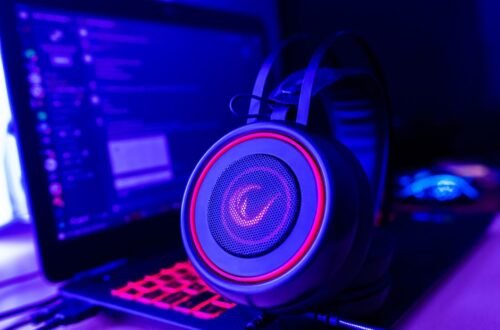
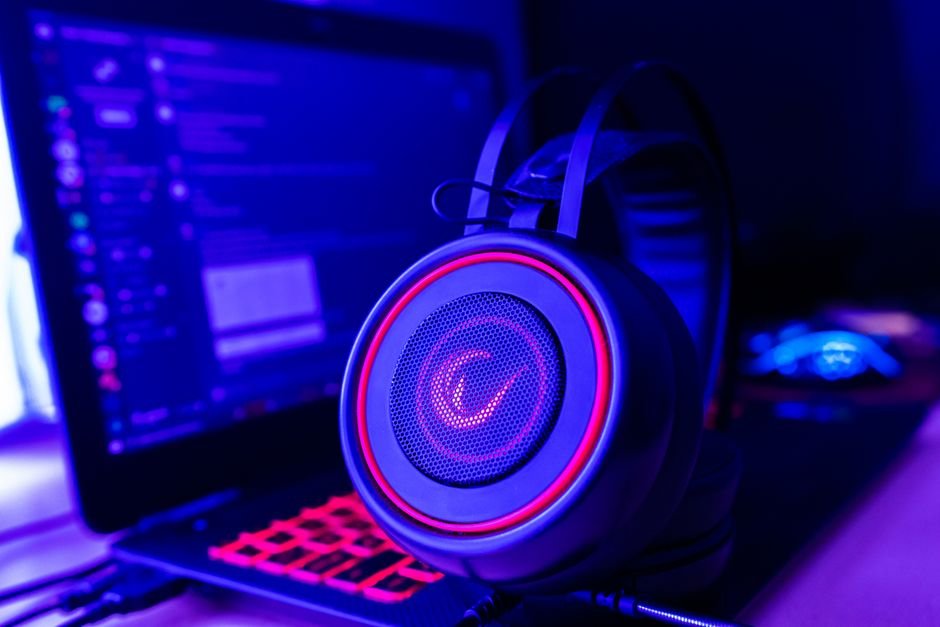
To effectively address audio issues, you must first diagnose the root cause. Begin by identifying whether the problem is hardware or software-related. Check if your gaming headset is functioning correctly. Testing the headset with another device can reveal if the issue lies within the headset itself. If it works fine elsewhere, focus on your gaming device.
Look for error messages on your device, and run the built-in troubleshooting tools. Systems like Windows have a dedicated audio troubleshooter that helps identify issues within the operating system. Running this tool can often save you time, preventing unnecessary fiddling with settings. If problems persist, manually inspecting audio input/output devices is essential, ensuring your preferred settings are enabled and working.
Optimizing Audio Settings
After diagnosing potential issues, it’s time to tweak your audio settings. Start with checking the sound settings in your operating system. Make sure your gaming headset is set as the default audio playback device. This step is crucial because sometimes the system defaults to internal speakers or other outputs.
Next, dive into the game’s audio settings. Ensure that all volume levels are appropriately adjusted. I recommend doing a test run within the game; many titles offer options to play sound samples that can help determine if the audio is functioning correctly. If you’re playing first-person shooters, pay attention to spatial sound settings which are essential for directional audio cues. Optimized settings can often enhance your overall gaming experience significantly.

Updating Drivers: A Necessary Step
One of the frequent areas to overlook during gaming audio troubleshooting is updating sound drivers. Older versions may support basic functionality but often lack essential updates that improve audio performance and compatibility. I’ve learned that regularly checking for updates can prevent future issues, ensuring that everything runs smoothly.
Getting to the update, you can usually find the latest drivers on the manufacturer’s website or through system preferences/setups. After installation, restart your device to ensure they’re fully integrated. It’s vital to avoid skipping this step, as outdated drivers can carry over existing bugs into your current gaming sessions.
When Hardware Issues Occur
If software fixes don’t yield results, it’s time to consider hardware issues. A common mistake is to immediately assume that the headset is faulty. Before heading towards replacements, test it with different devices. If the headset works elsewhere, the problem likely lies within the gaming setup, not the gear.
In case of multiple devices acting oddly, look for damaged ports or cables. For wired headsets, check if there are any frayed wires near the connectors. For wireless units, ensure that the battery is adequately charged. I’ve found that many audio troubles stem from poor connectivity which can easily be overlooked. If you confirm that hardware failure does exist, seek reliable replacements as needed.
Avoiding the Most Common Pitfalls
In gaming audio troubleshooting, there are several pitfalls to avoid. Don’t assume that all issues are monumental; sometimes a simple speaker adjustment or cable re-plugging can work wonders. Also, avoid digging into complex configurations unless absolutely necessary. Many audio problems can be fixed with straightforward solutions that don’t require an engineering degree.
Another mistake is overlooking environmental factors. Excess background noise can interfere with audio settings, making it seem like there’s an issue when it’s simply the environment affecting the sound. When testing, try to isolate your gaming space from distractions to assess the audio accurately.
Final Tips for Long-Term Success
For reliable audio, invest in a high-quality headset like the SteelSeries Arctis Pro for pro-level streaming and competitive gaming or a HyperX Cloud II if you're on a budget yet demand solid performance. Consistently check your audio settings before key gaming sessions and keep your drivers updated to avoid interruptions.
Related reading: best audio.
Frequently Asked Questions
Why is my game audio not working?
Your game audio may not be working due to issues such as muted system settings, disconnected audio devices, or incorrect output settings. Ensure that your speakers or headphones are properly connected and that the volume is turned up.
How can I fix distorted game sound?
To fix distorted game sound, check for any loose connections and ensure your audio drivers are up to date. Additionally, lowering the in-game sound settings or adjusting the equalizer can help clear up any audio distortion.
What causes game audio delay?
Game audio delay can be caused by several factors including a slow or overloaded system, improper audio device configuration, or latency settings in your audio software. Ensure your hardware meets game requirements and test different audio output devices to minimize delay.
Can sound settings affect game audio?
Yes, sound settings significantly affect game audio quality and performance. Adjusting settings such as sample rate, bit depth, and audio output device can resonate differently in games and can help eliminate issues like distortion or delay.
Is there a way to boost gaming audio?
You can boost gaming audio by increasing the system volume, adjusting in-game audio settings, or using sound-enhancing software. Additionally, investing in quality headphones or speakers with built-in amplification features can also enhance overall audio experience.