Over 70% of viewers abandon streams with poor audio quality. Many streamers overlook it while focusing on video, often leading to negative viewer experiences. These seven tips will help optimize your audio levels and boost your stream's overall quality.
1. Get Familiar with Monitoring Tools
Using audio monitoring tools is crucial for understanding your stream’s audio landscape. I recommend having headphones or audio monitoring software on hand. This way, you can hear exactly what your audience hears. If you can’t hear distortion or dips in your audio personally, you can’t fix them effectively. Tools like OBS have built-in audio meters that can offer real-time feedback.
Make sure to review your audio setup regularly and adjust based on the feedback you receive from these monitoring tools.
2. Balance Game and Mic Volume
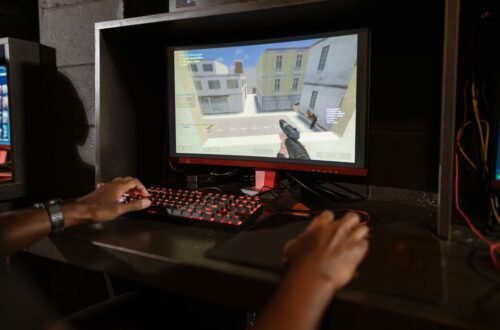
One of the biggest mistakes I see streamers make is failing to balance game and mic audio. If your game sounds drown out your voice, viewers will quickly lose interest. Aim for your voice to be slightly louder than game sounds; this keeps the focus on you while still allowing the gameplay to add context.
Test various volume levels before your stream to find this sweet spot.
A good rule of thumb is to set your mic gain one-third louder than in-game volume. Play with these levels until you strike the perfect balance.
3. Invest in a Quality Audio Mixer
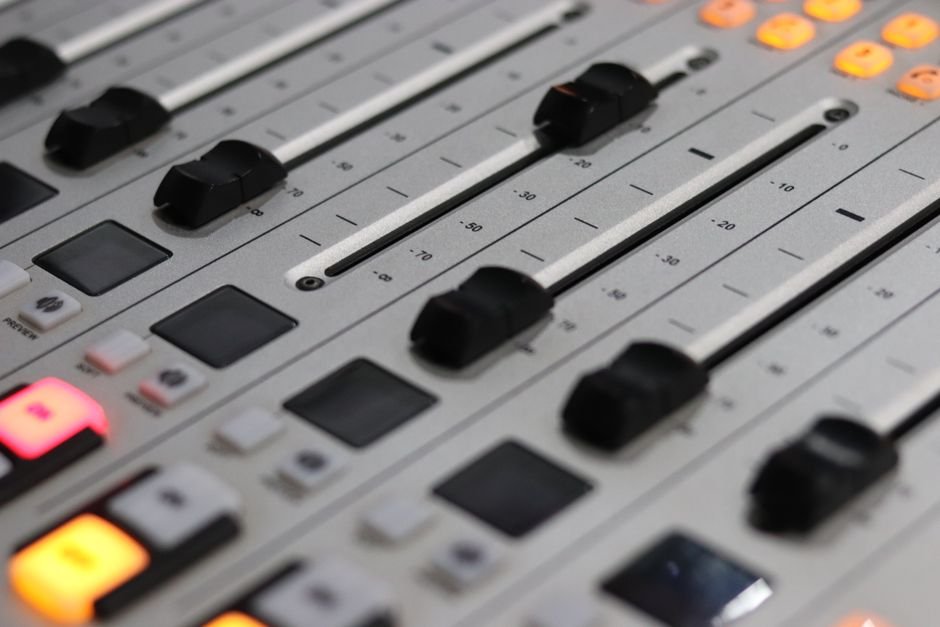
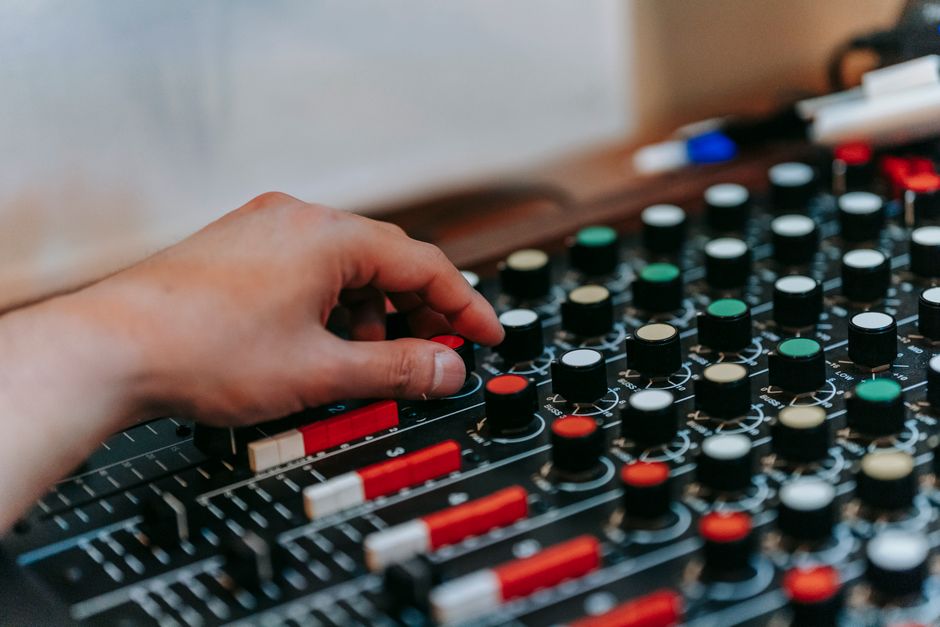
While using software for audio mixing is convenient, a dedicated audio mixer can take your stream’s sound quality to another level. A hardware mixer allows for precise control over individual audio channels, offering features like EQ and effects which software sometimes lacks. I’ve found that certain mixers let me quickly adjust levels on the fly without interrupting my stream.
Consider a mixer with built-in USB output for easy connectivity. It’s a smart investment that pays off in improved sound quality.
4. Control Environmental Noise
Background noise can seriously impact your stream audio. To mitigate this, try to create a dedicated streaming space. Soft furnishings can absorb sound, reducing echoes and external noise. If you’re unable to soundproof your space entirely, simple solutions like using a microphone with noise-cancellation features can make a significant difference.
Conduct test recordings to identify any noise that could interfere with your stream, then brainstorm some effective strategies to minimize it.
5. Use Compression and Limiting Techniques
Dynamic range is the term that describes the difference between the quietest and loudest parts of your audio. If your audio jumps between extremes, it can be jarring for listeners. Using a compressor stabilizes audio levels by reducing the dynamic range, allowing for a more consistent listening experience. I recommend setting a compressor to achieve 3:1 or 4:1 ratio on your voice channel.
Don’t overdo the compression, as it can flatten your audio and take away its natural dynamics. Just a slight adjustment can make a world of difference.
6. Master the Art of Gain Staging
Gain staging refers to managing audio signal levels at different stages of your audio chain. Proper gain staging ensures that your audio doesn’t distort and stays crisp. Start by setting your microphone gain at a level where your loudest voices do not peak. Ideally, your input should sit between -12 dB and -6 dB on the meter before hitting the main output.
Always adjust levels gradually to avoid sudden spikes that can create distortion or discomfort for your audience.
7. Engage with Your Audience for Feedback
Lastly, don’t underestimate the value of direct audience feedback. After a stream, ask your viewers about audio quality and make adjustments based on their input. Engaging with your audience not only improves your stream quality but also helps you build a community as you take their suggestions to heart.
Regularly ask for feedback on specific audio elements like voice clarity, background noise, and music volume. It’s this feedback loop that often leads to significant improvements.

Making the Most of Your Audio Setup
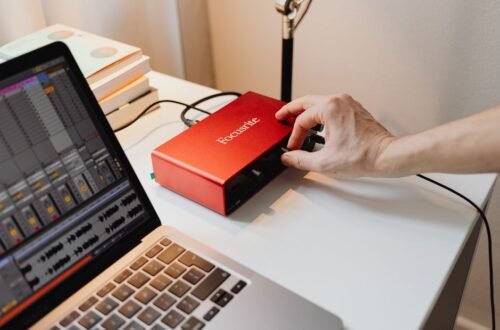
To achieve the best audio quality, invest in a good microphone and consider a dedicated audio interface if you want professional results. For those on a budget, USB microphones can provide decent sound without the need for additional equipment. Tailor your choice based on your budget and the level of quality you want to achieve.
If that matters to you, our piece on setup gear goes further.
If that matters to you, our piece on setup gear goes further.
Frequently Asked Questions
How do I balance game and voice audio?
To balance game and voice audio, use a mixer or software with sliders for each audio source. Adjust the game audio to be slightly quieter than your voice so that your commentary is clear and engaging without drowning out the game sounds.
Why is my stream audio too low?
Your stream audio may be too low due to incorrect settings in your streaming software or hardware. Check the input levels of your microphone and audio sources, as well as the overall stream volume settings.
Can I adjust audio levels mid-stream?
Yes, you can adjust audio levels mid-stream if you are using software that allows live audio monitoring. Many streaming programs include audio mixers that enable quick adjustments without interrupting the flow of your stream.
What tools help with streaming audio levels?
Tools like OBS Studio, Streamlabs, and VoiceMeeter provide options for adjusting audio levels effectively. Additionally, hardware solutions like audio mixers can help in balancing levels between different audio sources seamlessly.
Is there software for enhancing streaming audio?
Yes, software such as Voicemeeter Banana and Adobe Audition offer features to enhance audio quality for streaming. These programs allow for noise reduction, equalization, and other audio enhancements to improve the overall sound. You can also learn about how to adjust audio levels for streaming.