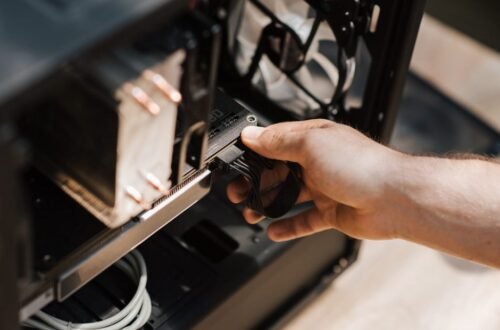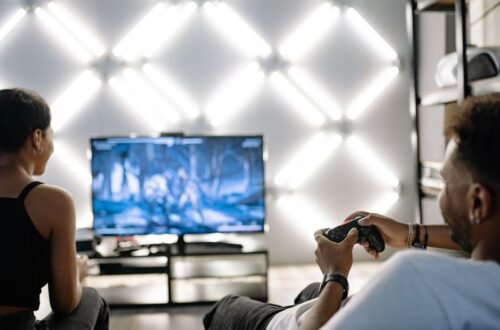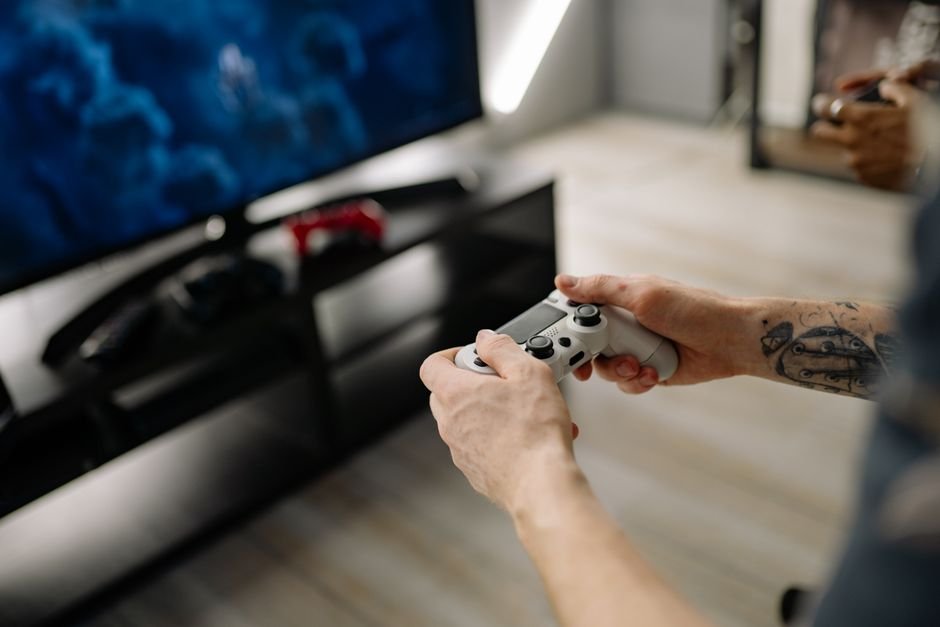
More than 50% of gamers report that connecting their console to a home theater system transforms their gameplay. A well-set-up system delivers superior sound and visuals, creating an immersive environment. Let's simplify the process of connecting your gaming console to your home theater, eliminating the typical confusion.
Most consoles today utilize HDMI cables to transmit audio and video, making them the go-to choice for simple connections. If you’re unsure about the ports and options available on your devices, don’t worry. I’ve been there and can guide you through a straightforward step-by-step process. Let’s dive in.

Choosing the Right Cables for Your Console
The first step is selecting the right cable. If you’re using a newer console, chances are you’ll rely mainly on HDMI cables. This method not only includes high-definition video but also high-fidelity audio. Many home theater systems come equipped with multiple HDMI ports, which should suit your needs well.
If you’re working with an older console, or if your audio system has specific requirements, you might also need to explore digital optical connections for audio output.
For a seamless experience, prioritize high-speed HDMI cables that support 4K resolution if that’s what your console offers. Avoid low-quality options that could cause signal degradation. Overall, I recommend investing in well-reviewed HDMI cables that ensure a strong and stable connection.
Identifying the Right Ports on Your Equipment
Next, you need to identify the appropriate ports on both your gaming console and home theater system. Most consoles, like the PlayStation or Xbox, will have a dedicated HDMI OUT port. This port sends the video and audio signals from your console directly to the AV receiver.
On your AV receiver, look for HDMI IN ports, these should be labeled accordingly. If you also see additional options such as optical audio ports, note their locations, as they can be useful for enhanced audio setups. Understanding the layout of your devices can simplify the entire connection process, more than you might realize.
Step-by-Step Connection Process
With your cables ready and ports identified, it’s time to connect everything. Begin by connecting one end of the HDMI cable to the HDMI OUT port on your gaming console. Next, take the other end and plug it into one of the available HDMI IN ports on your AV receiver. Make sure you remember which port it’s connected to for easy access later.
Once both ends are secure, power on your home theater system and console. Change the input on your AV receiver to the HDMI port you connected to. If you followed these steps, you should immediately see the console’s output on your screen, along with audio routed through the home theater system.
Fine-Tuning Audio Settings
Once connected, you may want to adjust your audio settings to get the best sound possible. Most gaming consoles provide options to configure audio output settings in their system menus. Ensure that your console is set to output audio through HDMI. Additionally, check the audio settings on the AV receiver itself.
You may want to select formats like PCM or Bitstream, depending on your audio preference.
A common mistake people make is overlooking these audio settings, which can leave you with subpar sound quality. Take the time to explore different settings until you find what sounds best for your gaming environment.
Additional Considerations for an Enhanced Setup
If you’re hoping to take your gaming experience even further, consider adding surround sound capabilities. Using additional speakers or a soundbar can create a more immersive environment. Look into setting up your system for Dolby Atmos if your AV receiver supports it. This can elevate your gaming sessions by enhancing the spatial audio experience.
If you’re interested in upgrading your sound setup, I have a detailed guide that covers the best audio configurations here: 5 Best Audio Setup for Gaming. You might find some useful options to amplify your gaming experience.
We cover gaming equipment do i in more depth separately.
The Bottom Line: Master Your Setup
For those looking for the best setup, using an HDMI cable is the most efficient choice and works well for most modern systems. If you're using older equipment, consider optical cables for audio, while newcomers might opt for wireless setups that minimize clutter. The right configuration will enhance your gaming sessions significantly.
Frequently Asked Questions
How do I connect an Xbox to a home theater system?
To connect an Xbox to a home theater system, use an HDMI cable to connect the Xbox HDMI output to an HDMI input on the home theater receiver. Then, connect the receiver to your TV using another HDMI cable, ensuring that the receiver is set to the correct input for the Xbox.
Why is my gaming console not connecting to my TV?
Your gaming console may not be connecting to your TV due to several reasons, including incorrect input selection on the TV, loose or damaged cables, or compatibility issues. Check that your console is on the correct HDMI input, and try using different cables, or test with another TV to isolate the problem.
Can I connect a gaming console to a soundbar?
Yes, you can connect a gaming console to a soundbar by using an HDMI cable. Connect the console's HDMI output to the soundbar's HDMI input, and then connect the soundbar's HDMI output to your TV, ensuring that both devices are properly set to the right inputs.
What cables do I need for surround sound with a console?
For surround sound with a gaming console, you'll typically need HDMI cables, as they can carry both audio and video in one connection. If you're using an older audio system, you might also require optical audio cables or RCA cables for audio output.
How to fix audio delay on a gaming console setup?
To fix audio delay on a gaming console setup, first, check if your TV or sound system has a 'lip sync' adjustment feature and calibrate it. Alternatively, you could try using different sound output settings on the console or bypass the sound system by connecting the console directly to the TV.