Fewer than 15% of home theater enthusiasts successfully connect their PCs to their audio systems. This setup can revamp your entertainment experience, especially for gaming and streaming, but it requires a solid understanding of the available options and connections. Knowing the right cables and settings to use is crucial.
In this guide, I’ll walk you through the essential steps on how to connect a PC to a home theater system efficiently. With the right knowledge, you can enjoy vibrant visuals and robust audio that elevate your entertainment. Let’s get started.
Choose the Right Connection Method
The first step in connecting your PC to a home theater system is selecting the right connection method. Typically, you can use HDMI cables, DisplayPort, or even optical audio cables, depending on what your devices support. HDMI is the most straightforward and versatile option, as it carries both high-definition video and audio.
Most home theater systems and PCs come with multiple HDMI ports, making it the ideal choice for most users. If you have a newer projector or a high-end receiver, check to see if they feature HDMI 2.0 or 2.1, as these versions support higher resolutions and refresh rates, which is essential for gaming or viewing 4K content.
Setting Up HDMI and Audio Cables
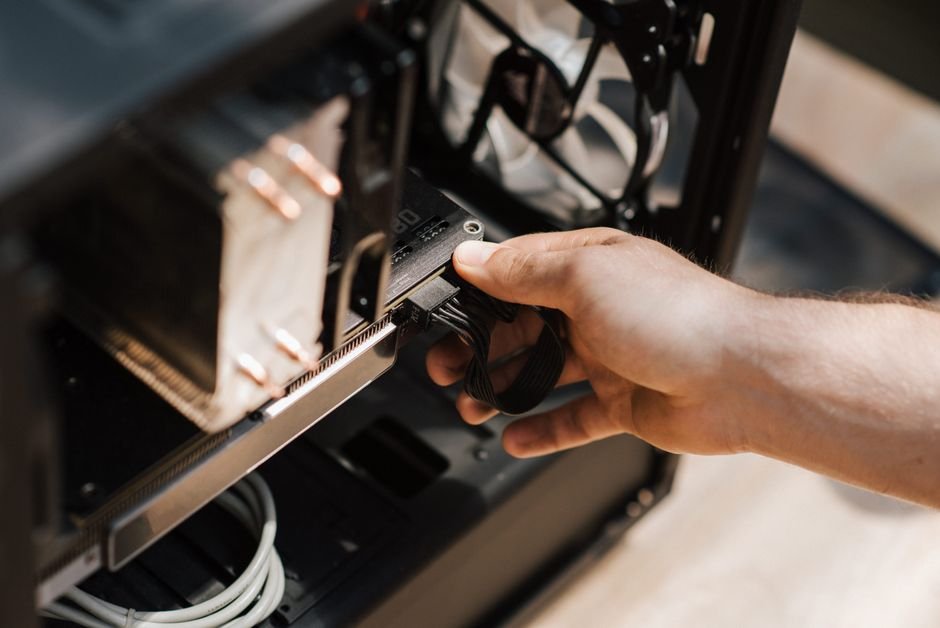
If you opt for HDMI, start by connecting one end to your PC’s HDMI output and the other end to the HDMI input on your audio receiver or TV. Make sure that you select the correct input source on your TV or receiver so that your PC’s display shows properly.
Should your PC have multiple video output options (like DisplayPort), and you want to take advantage of a surround sound setup, connecting an audio receiver to your PC may involve using additional cables for audio. In such cases, if your audio receiver is not directly connected via HDMI, consider using an optical cable for digital audio output from your PC to the receiver.
This setup ensures that you can enjoy multi-channel audio effectively.

Configure Audio Settings on Your PC
Once you’ve connected your PC to your home theater system, it’s essential to configure your audio settings correctly. Go to your system’s audio settings and ensure the default playback device is set to your audio receiver or the HDMI option.
Testing the audio output is crucial, play a video to ensure that the sound is coming through your home theater speakers and not your PC’s internal speakers.
If you’re a gamer or enjoy movies, I highly recommend checking for surround sound options in your audio settings. Some PCs allow for virtual surround sound, which gives you an immersive listening experience with certain audio formats.
Resolving Common Issues
Many people run into issues like no sound or visual disruptions after connecting their devices. Ensure that your HDMI or optical cables are secure and not damaged. For video issues, check if you need to update your graphics driver. Outdated graphics drivers can cause compatibility problems that impact your setup.
Additionally, check the resolution settings on your PC. Sometimes, the output might default to a lower resolution that your TV or projector does not support. Adjust the display settings under your PC’s display options; typically, 1920×1080 or 3840×2160 is suitable for full HD or 4K setups respectively.
Finishing Touches for a Superior Experience
After getting everything connected, don’t overlook additional aspects like optimizing your seating arrangement and sound settings. Proper placement of surround sound speakers can enhance the audio experience significantly. Refer to guidelines specific to your audio system for optimal speaker positioning.
If you are also dealing with enhancing audio quality, I highly recommend checking out articles like 5 Best Audio Setup for Gaming or 5 Best Surround Sound System for Gaming for recommendations that can help push your audio experience to the next level.
Worth reading alongside this: stream sound.
Final Thoughts: Achieving the Ultimate Setup
For the best results, use an HDMI cable to connect your PC to the home theater system, which suits most modern setups perfectly. If your goal is superior audio quality, consider investing in an optical audio cable for dedicated sound systems, while basic setups can often rely on simpler connections like RCA cables. Additionally, learn more about how to connect a PC to a home theater system to enhance your knowledge and setup.
Frequently Asked Questions
How can I connect my PC to a home theater system?
You can connect your PC to a home theater system using an HDMI cable, which carries both video and audio signals. Alternatively, you can use optical or 3.5mm audio cables for audio only, depending on your home theater system's inputs.
Why isn't my PC connecting to my home theater?
Your PC may not connect to your home theater for several reasons, including incorrect input selection on your home theater system or faulty cables. Also, ensure that your PC settings are configured to output audio to the connected device.
What cables do I need for PC to home theater?
To connect your PC to a home theater system, you'll typically need an HDMI cable for high-quality audio and video transmission. If you are only transmitting audio, a digital optical cable or a standard 3.5mm audio cable may also be used.
Can I use Bluetooth to connect a PC to a home theater?
Yes, you can use Bluetooth to connect a PC to a home theater system if both devices support Bluetooth connectivity. However, this method may not provide the same audio quality as a wired connection like HDMI.
Is it better to use HDMI or optical audio for PC connections?
HDMI is generally better for connecting a PC to a home theater system because it transmits both high-definition video and audio in one cable. Optical audio can provide good sound quality but does not support video and is limited to audio signals only.