Nearly 40% of home theater enthusiasts encounter sound issues that disrupt their experience. This guide presents seven effective troubleshooting steps that can be implemented by anyone to improve audio quality and enhance both gaming and viewing sessions.
Each of these strategies targets typical audio problems that gamers encounter in their home entertainment systems. Whether you’re frustrated by a lack of surround sound or muddled audio settings, these steps can help restore clarity and immersion to your gaming adventures.

1. Check Your Connections
Loose or faulty connections are often the primary culprit behind sound issues. Inspect all your cables connecting your audio receiverspeakers, and gaming console to ensure they are secure. Pay attention to HDMI and audio cables, as these are often the most problematic. This is especially important after moving equipment or making adjustments to your setup.
Tip: Use high-quality, well-shielded cables to minimize interference, which can also affect sound quality.
2. Adjust Audio Settings
Often, audio settings can become misconfigured, especially after software updates. Check the audio settings on your gaming console and receiver to ensure they are optimized for your sound system. Look for modes like “surround sound” or “stereo” and switch between them to find the best option for your environment.
Many people overlook the importance of these settings, which can lead to a flat or inaccurate soundscape.
Consider looking for an “Auto” mode that may optimize settings automatically based on your equipment.
3. Check for System Updates
Neglecting software and firmware updates can lead to compatibility issues, affecting audio output. Ensure that your gaming console and audio receiver are running the latest firmware; manufacturers often release patches that improve sound performance or correct existing bugs. This simple maintenance step can save you headaches down the line.
Always enable automatic updates when available, so you won’t miss critical patches.
4. Speaker Calibration
Correctly calibrated speakers can significantly enhance your home theater experience. Many receivers offer automatic calibration systems that use a microphone to assess sound output and balance it across all channels. If you skip this step, you may end up with uneven audio levels, missing the full effect of a game’s sound design.
Run speaker calibration with furnishings arranged as they will be during gaming sessions for the most accurate results.
5. Positioning Your Speakers
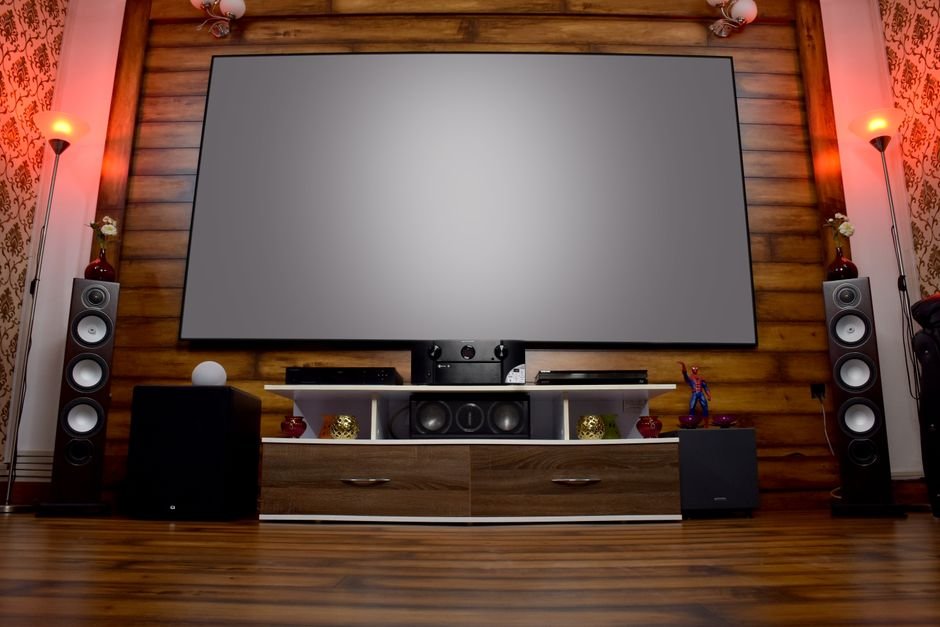
Poor speaker placement can lead to muddled sound and poor surround sound effects. Ideally, front speakers should be at ear level when seated, while surround speakers are placed slightly above ear level. Experiment with speaker positioning, listening to familiar soundtracks or game audio to determine the optimal arrangement for your space.
Use furniture or bookshelves to help achieve the ideal height. A temporary setup can help you figure out what works best before committing to permanent placements.
6. Test Different Audio Outputs
Sometimes, the output configuration causes sound issues. If you’re relying on built-in TV speakers, try using an external sound system or soundbar. Alternatively, if you’re using HDMI ARC or optical cables, switch between them to see if there’s a noticeable improvement in sound quality. This often surprises people who don’t realize how much better dedicated audio systems perform.
Be prepared to adjust your settings based on the output you choose, as different formats may require different configurations.
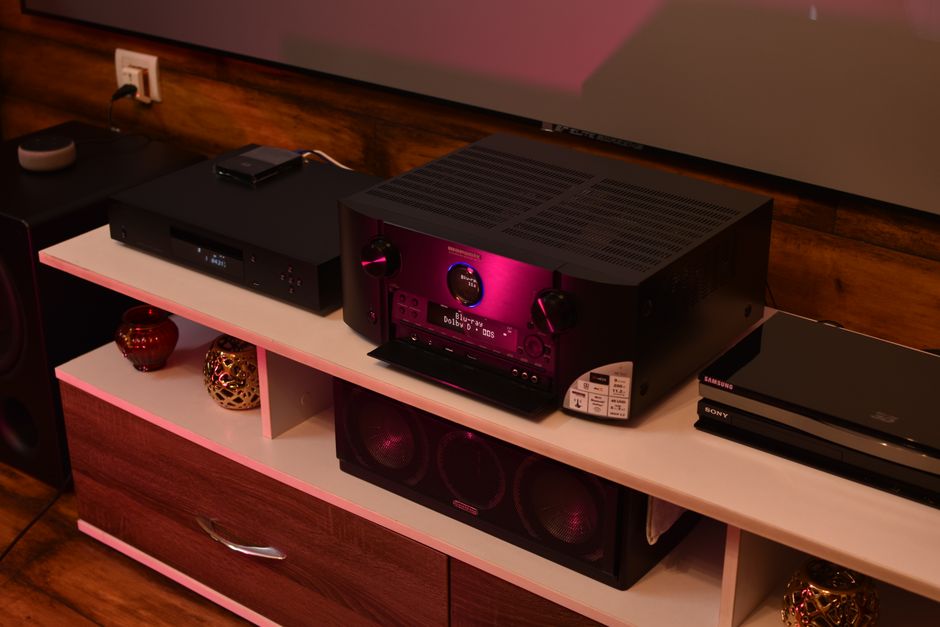
7. Use a Room Correction System
If you’re still facing issues, consider investing in a room correction system. These systems analyze your room’s acoustics and adjust equalization settings to create the best sound experience possible. While this option may represent a higher investment, the enhanced audio experience can be worth the cost for dedicated gamers aiming for immersive sound.
Research different brands and models, as some offer more effective algorithms for specific room layouts than others. Look to community reviews to find options highly regarded for your needs. When troubleshooting home theater sound issues, be sure to consult comprehensive manuals like the RCA Home Theater System Service Manual for specific guidance.
How to Choose
Start by checking your audio connections and adjusting the settings, as these simple steps resolve most issues for casual users. For those with more complex setups, consider investing time in calibration and speaker placement to achieve optimal sound quality.
We cover gaming monitor in more depth separately.
Frequently Asked Questions
How do I fix low sound in my home theater?
To fix low sound in your home theater, start by checking the volume levels on both your receiver and the source device. Ensure that all speakers are correctly connected and that any equalizer settings are appropriately set to boost the overall volume.
Why is my home theater sound out of sync?
Sound being out of sync can occur due to various factors, including the delay from video processing in your TV or projector. To fix this, check the audio settings on your receiver for a lip-sync adjustment or select a different audio output on your source device.
What are common causes of home theater audio issues?
Common causes of audio issues in home theaters include improper speaker connections, incorrect settings on the AV receiver, and interference from other electronic devices. Additionally, issues can arise from outdated software or firmware that needs updating.
Can gaming consoles affect home theater sound quality?
Yes, gaming consoles can affect home theater sound quality if the audio settings are not optimized. Make sure to configure the audio output settings on the console to match your home theater system for the best sound experience.
How do I calibrate my home theater speakers for gaming?
To calibrate your home theater speakers for gaming, use the built-in calibration tool on your AV receiver or a sound level meter to set each speaker's levels correctly. Adjust the distance settings according to the placement of each speaker in relation to your gaming position to ensure sound accuracy.