Gamers lose approximately 30% of their performance due to subpar audio settings. In fast-paced environments, missing critical sound cues can lead to frustration and defeat. To enhance your gaming experience, here are seven key audio settings that can elevate sound quality, whether you use a premium headset or standard speakers.
Whether you’re a competitive player needing every directional sound or a casual gamer wanting to enjoy an immersive narrative, these settings will vastly improve your sound experience. Here’s how to get started.

1. Enable Surround Sound
Surround sound offers a panoramic audio experience by using multiple channels to create a three-dimensional sound environment. For competitive gaming, this setting allows for better audio localization, meaning you can pinpoint enemy movements more accurately. It’s best for players who thrive in first-person shooters or multiplayer battle arenas.
Make sure your sound settings allow for surround sound options, often found in the audio settings of your game or the control panel of your sound system.
2. Customize Equalizer Settings
Equalizer (EQ) settings allow you to adjust the frequency balance of sounds. Boosting the mid-range frequencies can enhance dialogues and footsteps, while reducing bass can prevent distractions from powerful sound effects. It suits gamers looking for a tailored listening experience that enhances their specific genre of gameplay, whether it’s action or strategy.
Experiment with different presets or manually adjust the sliders until you find a balance that feels right for your games.
3. Adjust Volume Levels Individually
You’ll often find separate volume controls for voice chat, game audio, and music in your audio settings. This level of customization lets you control how much you hear from each source, helping to create a balanced experience. It is particularly useful for team-based games where communication is crucial, giving chatter priority over background sounds.
Check your game’s options menu, often under Audio, to find these individual settings, and tweak them based on your preferences.
4. Use Game-Specific Audio Presets
Many modern games come with audio presets optimized for different types of gameplay. These can enhance overall sound quality, tailoring effects specifically for shooting games, RPGs, or even horror games. This is especially beneficial for gamers who enjoy multiple genres and want the best sound experience without manual adjustments each time.
Always check the audio options of your games for any presets available to save time on setup.
5. Enable Sound Normalization
Sound normalization helps to equalize volume levels across all sounds, preventing sudden loud noises from startling you during intense gameplay. This is especially valuable for horror or action games, where drastic sound changes can disrupt your focus. Ideal for gamers prone to unexpected sound spikes, this setting helps maintain immersion.
Look for sound normalization features in your game’s audio options, or enable it through your audio interface settings.
6. Optimize Audio Quality Settings
Most gaming platforms have settings that allow you to choose between different audio quality modes, from standard to high-definition audio. Higher-quality settings significantly enhance clarity but can also consume more bandwidth. If you have a stable internet connection and a good sound setup, aim for higher audio quality for a richer experience.
Check the settings of your gaming console or PC to switch to high-quality audio, making sure your device can handle it without lag.

7. Invest in Quality Gaming Headsets
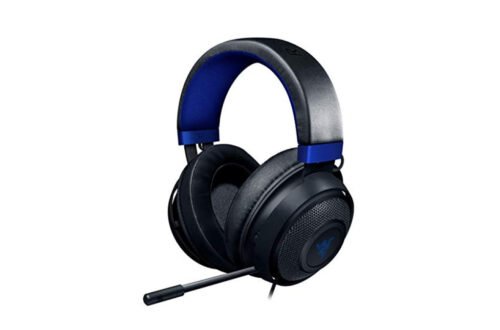
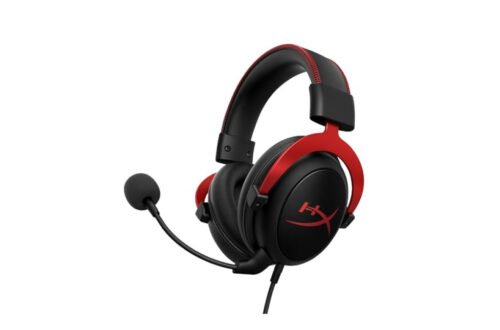
No audio setting can truly shine without good hardware. Quality gaming headsets often come equipped with features like noise cancellation and surround sound support inherently. These headsets not only improve audio but enhance comfort for longer gaming sessions by ensuring your focus remains on gameplay instead of background noise. They are perfect for dedicated gamers who understand the importance of sound.
Before purchasing a new headset, consider researching specifications and read reviews to ensure it suits your gaming style.
How to Choose
For competitive gamers, prioritize directional audio settings to gain an edge during gameplay. Casual players and those who enjoy narrative-driven titles should adjust settings that amplify atmospheric sound. Test different configurations to discover what significantly enhances your enjoyment.
If that matters to you, our piece on setup for gaming goes further.
Frequently Asked Questions
What are the best gaming audio settings?
The best gaming audio settings typically include enabling any spatial audio features your system or headphones support, adjusting the equalizer for balanced frequencies, and ensuring that the audio output is set to a high-fidelity format. It's also beneficial to set voice chat levels separately from game audio to maintain clarity in communication.
How do I optimize sound for gaming?
To optimize sound for gaming, start by configuring your audio device settings in the game's options menu, ensuring that the sample rate matches your hardware capabilities. Additionally, using headphones instead of speakers can enhance immersion, and configuring the audio settings within your operating system can help balance various audio outputs.
Can audio settings improve gaming performance?
While audio settings themselves do not typically affect frame rates or graphics performance, optimizing them to reduce lag or improve clarity can enhance the overall gaming experience. Lowering resource-intensive effects or switching to a more efficient audio format may free up system resources for improved performance.
Why is my gaming audio not clear?
Unclear gaming audio can result from misconfigured audio settings, poor quality headphones, or interference in audio devices. Check that your audio drivers are up to date, and try adjusting settings such as sample rates or equalizer levels to see if that improves clarity.
How do I setup 3D sound for gaming?
To set up 3D sound for gaming, check if your audio hardware supports spatial audio formats like Windows Sonic or Dolby Atmos and enable them in your system settings.
Additionally, some games have built-in 3D audio settings that can be activated in the audio settings menu; ensure your audio output device is set to use stereo or surround sound to take full advantage of these features. For more insights on this niche, consider exploring a career as a sound/audio technician to understand the role of audio in gaming.