About 70% of gamers report that audio quality affects their gameplay. Connecting gaming speakers to your PC can elevate your sessions significantly. Understanding the types of connections available ensures a stress-free setup.
When you think of gaming audio, proper connection shouldn’t be an afterthought. Choosing the right method to connect your speakers can influence sound clarity and overall gaming enjoyment. Depending on the age of your PC and your chosen speakers, you might be considering either wired or wireless solutions. I’ll walk you through the best connection strategies, and what to avoid in the process.
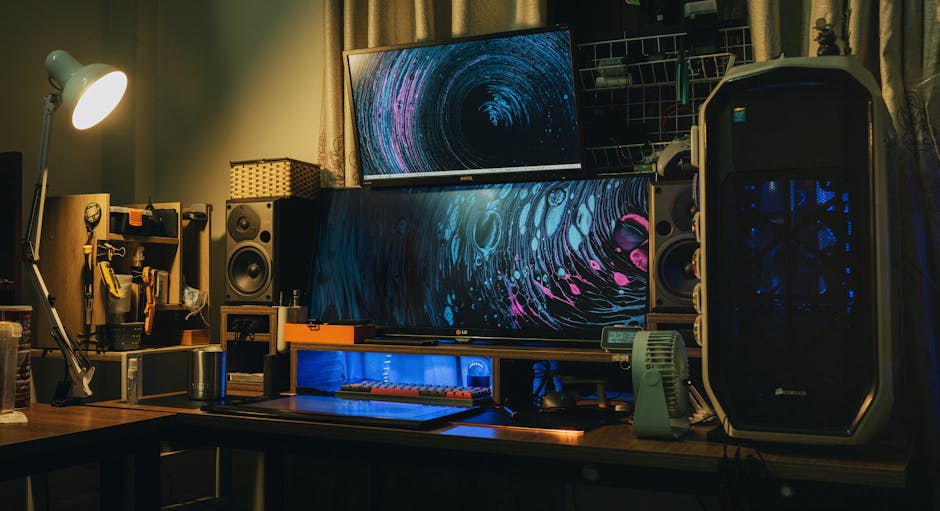
Recognizing Your Speaker Options and PC Compatibility
Before diving into connections, it’s essential to identify the type of speakers you have. Most gaming speakers come equipped with either 3.5mm audio cables or are Bluetooth compatible. The former will connect directly to your PC’s audio output, typically found at the back or front ports. If you go with Bluetooth, ensure your PC has Bluetooth capability, which many newer systems do.
For wired speakers, you’ll typically find two connectors for stereo sound: one for audio output and one for the microphone if it’s a multimedia setup. Make sure to check your PC’s manual or the audio output options on your device. On the other hand, Bluetooth speakers usually offer easy pairing but can have connectivity issues, so keep that in mind.
Step-by-Step Guide to Connecting Speakers to a PC
Let’s break this down into manageable steps. First, if you’re using wired speakers, plug the 3.5mm audio cable into the correct audio out port on your PC. Look for a green connector, usually labeled as ‘line out’ or ‘audio out’. The second step is adjusting the sound settings.
Right-click the sound icon in your system tray, select ‘Playback devices’, and make sure your speakers are set as the default device. From here, adjust the volume and balance settings to your preference. You might also want to check the speaker configuration in the sound settings to ensure you’re getting the best audio performance.
If you choose Bluetooth, make sure your speakers are in pairing mode. Go to your computer’s Bluetooth settings, search for devices, and select your speakers from the list. Once paired, return to your sound settings to confirm your Bluetooth speakers are set as the default audio device. It’s straightforward, but don’t skip ensuring everything is connected correctly.
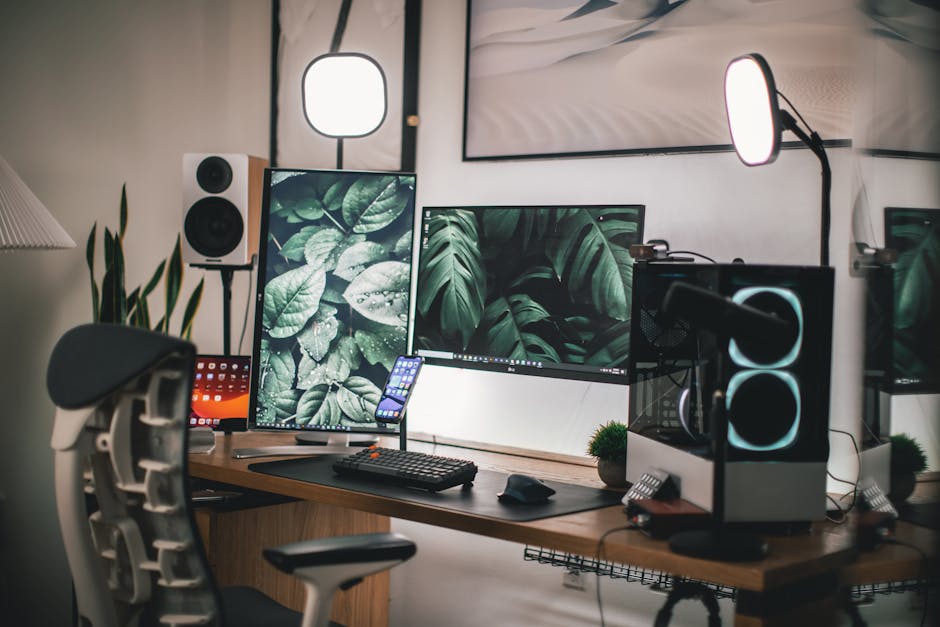
Wired vs. Wireless: Pros and Cons
There are several advantages to both wired and wireless setups. With wired connections, you typically get more stability and better sound quality, the direct link ensures minimal interference. Plus, setting up wired speakers is usually more straightforward with fewer compatibility issues.
On the contrary, wireless speakers provide a clean, clutter-free environment and the freedom to move them around your gaming space. If you happen to have older hardware that can’t support Bluetooth, you might be better off sticking with a wired setup. Ultimately, if sound quality matters more to you, go wired.
But for flexibility, opt for wireless, it’s all about weighing what’s more important for your setup.
Troubleshooting Common Connection Issues
Connection issues are common, and I’ve certainly experienced my fair share. If your speakers do not produce sound, start by checking connections to ensure everything is plugged in and not loose. Then, dive into the audio settings that may not be configured correctly. A frequently overlooked area is whether your speakers are muted, either directly on the device or in the PC’s sound settings.
Another issue arises with Bluetooth speakers. If they become unresponsive or fail to connect, try disconnecting from your PC and reconnecting. Sometimes, removing the speaker from your device list and re-pairing it resolves issues quickly. Keeping firmware updated on both your speakers and PC also contributes to better performance, reducing the chances of hiccups when trying to get your sound just right.
Some Final Tips for the Best Audio Experience
Once you’ve set up your gaming speakers, consider investing time in customizing your audio settings even further. Explore equalizer settings to enhance your gaming sound profile based on the game genre, FPS games often benefit from heightened sound localization. You can get specific with software tools or equalizers available on many systems or dedicated apps.
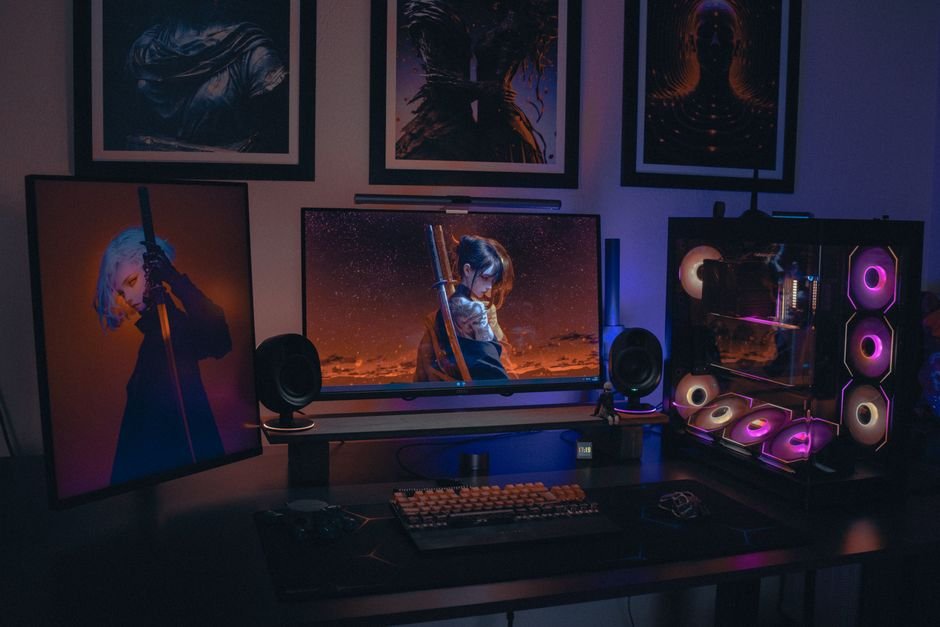
Additionally, don’t underestimate the importance of placement. Consider your room’s acoustics and position your speakers at ear level for optimum sound quality. For surround sound systems, properly placing speakers will amplify your gaming experience significantly, especially in immersive games. If you’re curious about how to connect gaming speakers to PC, check out my insights on various setups in my article about audio setups for gaming.
The Verdict: Choose What Fits Your Needs
For serious gamers, investing in a wired speaker system is key, as it provides superior sound fidelity for immersive experiences. Casual gamers might prefer Bluetooth speakers for their convenience and portability. Choose wired for serious play or wireless for flexibility, depending on your gaming habits.
Frequently Asked Questions
How do I connect speakers to my PC?
To connect speakers to your PC, plug the speaker cables into the appropriate audio outputs on your sound card or motherboard. For USB speakers, simply connect them to a USB port, while Bluetooth speakers will need to be paired through your computer's Bluetooth settings.
Why won't my speakers connect to my computer?
There could be several reasons your speakers aren't connecting, such as incorrect audio output settings, loose connections, or compatibility issues. Make sure the speakers are powered on, connected properly, and selected as the default output device in the sound settings of your PC.
Can you use Bluetooth speakers for gaming?
Yes, Bluetooth speakers can be used for gaming, but they may introduce a slight audio lag which could impact performance in fast-paced games. For the best experience, ensure your Bluetooth speakers support low-latency technology like aptX.
What are the best speakers for a gaming PC?
The best speakers for a gaming PC are often those that provide excellent sound quality and immersive audio, like the Logitech G560 LIGHTSYNC or the Razer Nommo Pro. Look for speakers with clear highs and deep bass to enhance the gaming experience.
Is it better to use wired or wireless speakers for gaming?
Wired speakers are generally preferred for gaming due to their lower latency and more stable connection, which is crucial for competitive gaming. Wireless speakers can offer convenience and a cleaner setup, but they may introduce delays that could affect gameplay.