Around 30% of streamers encounter audio problems that can lead to significant interruptions during broadcasts. Issues like voice crackling and desynchronization can detract from viewer experience, making a solid troubleshooting strategy essential for achieving clear sound quality.
Here’s my take on the five most relevant troubleshooting steps that every streamers should know. These will empower you to diagnose audio issues efficiently, ensuring that your streaming setup maintains optimal sound quality.
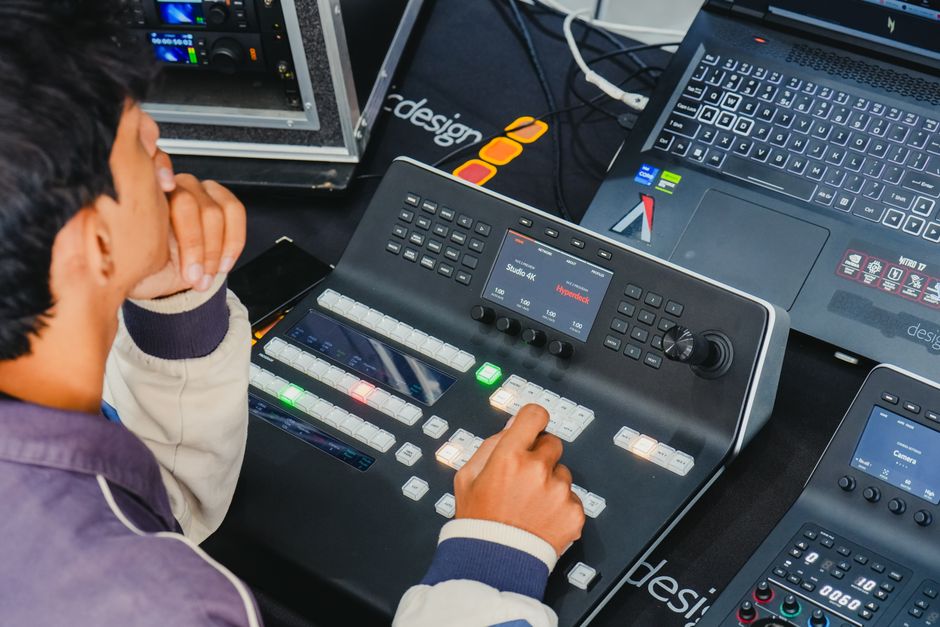
1. Check Your Audio Input Sources
One of the simplest yet often overlooked issues is ensuring the correct audio input source is selected in your streaming software. Many programs allow you to choose which microphone or audio device to capture sound from. If you’ve connected multiple devices, audio can end up being pulled from the wrong source. This is especially common with USB mics and integrated microphones on laptops.
To fix this, navigate to the settings in your streaming software and verify the input source. If you have external devices, disconnect and reconnect them to ensure they are recognized.
2. Adjust Your Microphone Settings
Misconfigured microphone settings can seriously impact audio quality. Often, the microphone gain might be set too low or too high. Too low, and your voice won’t come through clearly; too high, and you’ll produce distortion or clipping. Fine-tuning mic settings in the audio preferences is essential.
Start by setting your microphone gain to a mid-level volume and test your audio. Gradually adjust while monitoring sound quality for best results.
3. Monitor Audio Levels Before Going Live
Before starting a live stream, always monitor your audio levels. A common mistake many streamers make is assuming everything is fine without checks. Streaming software typically has audio meters that visually indicate levels. You should aim for levels between -12 dB and -6 dB while speaking to ensure clear sound without distortion.
In addition to visual checks, perform a quick test recording. Listen back to confirm that sound quality meets your expectations.
4. Eliminate Background Noise
Audio clarity can easily be compromised by unwanted background noise. This can stem from multiple sources, fans, keyboard typing, or even the outdoor environment. Many streaming software packages include noise suppression features, which can help mitigate these distractions.
To optimize this feature, ensure that your mic is directional to pick up your voice while minimizing ambient noise. In addition, set up your streaming area in a quieter space whenever possible.
5. Update Drivers and Software
Outdated drivers or software can lead to several audio-related issues. Issues such as crackling sounds or audio dropouts are often a result of mismatches between operating systems and driver versions. Regularly updating your audio drivers as well as the streaming software can save a lot of troubleshooting time down the line.
Before performing updates, check both the system and software settings. When in doubt, look for guidance from your audio device manufacturer for compatibility with your operating system.

Making the Most of Your Streaming Audio
Stream quality heavily relies on good audio control, so proactively managing your audio setup is vital. Regularly verifying your input sources, adjusting microphone settings, and keeping drivers updated can circumvent many issues before they arise. If you remain aware of your environment and run test checks, those streaming hiccups will become less frequent.
By adopting a systematic approach to troubleshooting audio issues in streaming software, you can keep your broadcasts professional and engaging. If you’re facing more complex audio problems, don’t hesitate to consult specific guides focused on areas like headset issues. For instance, I have a detailed guide on fixing gaming headset mic issues available here: How to Fix Gaming Headset Mic Not Working.
See also our take on elgato stream.
Frequently Asked Questions
Why is my stream audio delayed?
Audio delay in streaming can occur due to a mismatch between audio and video settings or latency in your hardware and software configurations. Check your audio buffer settings and ensure that they match the frame rate of your video to mitigate this issue.
How can I fix audio distortion in OBS?
To fix audio distortion in OBS, first reduce the audio gain to prevent clipping, which often causes distortion. Additionally, check your sample rates in both OBS and your audio interface settings to ensure they are aligned.
What causes sound to cut out on Twitch?
Sound cutting out on Twitch can be due to network instability, which affects the audio stream, or an issue with the streaming software settings. Ensuring a stable internet connection and adjusting bitrate settings can help resolve this.
Can volume issues affect streaming quality?
Yes, volume issues can significantly affect streaming quality by making the audio either too quiet for viewers to hear or too loud, causing distortion. It's essential to balance audio levels and perform test streams to optimize overall sound quality.
Is there a way to enhance mic output for streams?
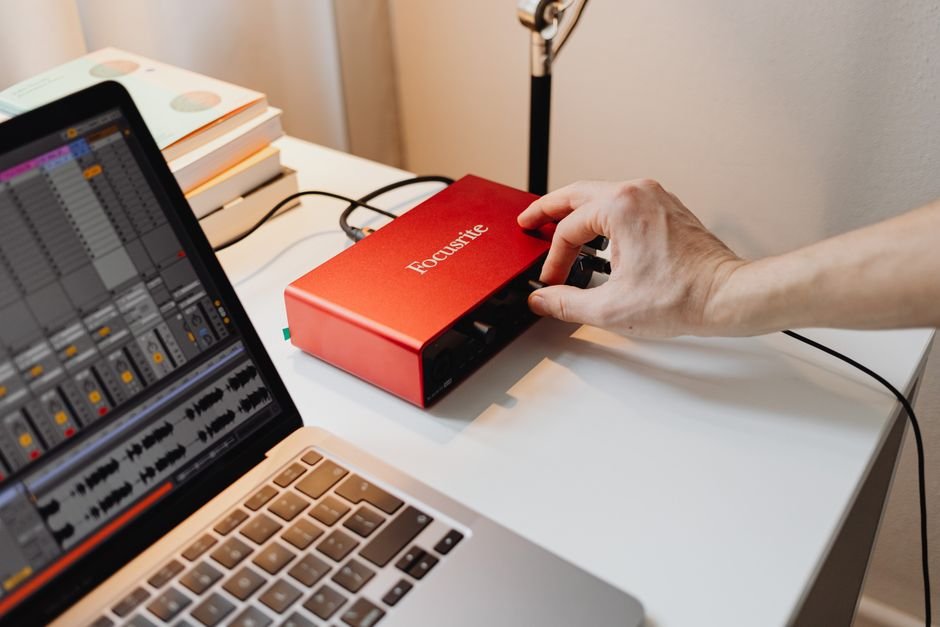
To enhance mic output for streams, consider using a quality audio interface or a preamp that boosts the mic signal before it reaches your streaming software. Additionally, adjusting the gain settings and applying compression in your audio settings can improve the clarity and presence of your microphone.