Playing multiplayer games can cost you matches if your audio settings are off. The wrong settings can mask crucial sounds, leaving you unaware of enemy movements or teammate communications. Here's a breakdown of my top audio settings to ensure you catch every critical detail in your gameplay.

1. Enable Surround Sound
Surround sound is essential for immersing yourself in a multiplayer game. Configuring your audio to use surround sound allows you to pinpoint enemy movements and environmental sounds. I’ve found that enabling this feature gives you an edge, especially in competitive shooters where knowing the direction of a gunshot can dictate your next move.
Most modern gaming headsets support surround sound, and it’s worth investing in one if you haven’t yet.
The main takeaway here is to ensure your headset supports this feature and to enable it in your game settings. This simple step can drastically improve your awareness of in-game happenings.
2. Adjust Voice Chat Clarity
Clear voice chat is crucial for teamwork in multiplayer games. Many players overlook audio settings that enhance voice chat clarity, but it truly matters when coordinates and strategies are shared. By increasing the volume of voice channels and reducing other sounds, I can focus on my teammates’ communication without distractions.
This is particularly useful in games like Battle Royale, where coordination can mean life or death.
A good practice is to find the right balance so that voice chat is prominent but you still hear critical game sounds. In options, find settings specifically for voice chat and tweak as necessary.
3. Set Up Custom Sound Profiles
Custom sound profiles help tailor the audio experience to fit your gaming needs. Most gaming headsets allow you to create or select different profiles based on the game’s sound design. For instance, setting a profile that boosts lower frequencies can help you catch the subtle noise of footsteps in stealth games.
I have found that using profiles tailored to specific genres enhances my in-game awareness significantly.
Take some time to experiment with different presets or craft your own. This can be more beneficial than relying solely on default profiles that may not suit every game equally.
4. Optimize In-Game Audio Settings
Every multiplayer game offers options to tweak audio settings within the game itself. This can range from adjusting master volume to tweaking sound effects. I usually recommend setting the master volume lower than the sound effects volume, as the latter often contains critical audio cues that can alert you to nearby enemies. Ensuring sound effects are loud enough provides better situational awareness.
Always dive into the audio settings menu of the game and adjust them according to your preferences. This level of customization allows you to gain that advantage when engaging with opponents.
5. Use a Dedicated Gaming Headset
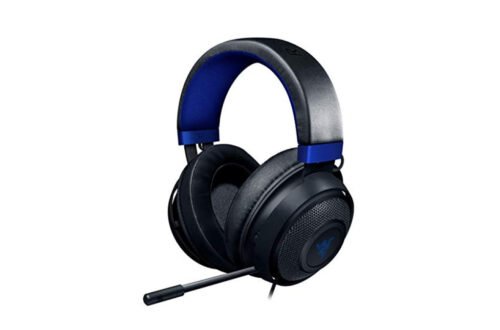
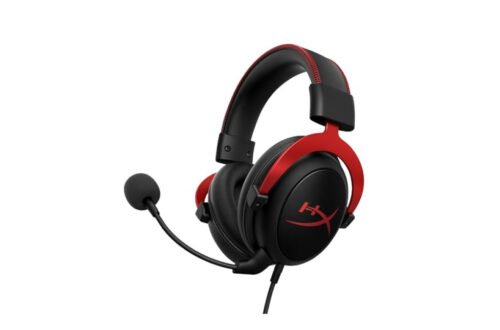
A high-quality gaming headset is non-negotiable for serious gamers. Not all headsets are built equally, and I’ve noticed a significant difference in sound accuracy and comfort with those designed specifically for gaming. Features like noise cancellation and high-fidelity audio can significantly impact your performance and immersion levels.
Before deciding on a headset, prioritize models with good reviews on audio clarity and comfort. This will ensure long hours of gaming don’t become a strain.
6. Keep Audio Drivers Updated
Many gamers overlook the importance of keeping their sound drivers updated. Outdated drivers can lead to poor audio quality and glitches during gameplay. Regularly checking for updates ensures that you benefit from improved sound performance and compatibility. I’ve encountered significant differences in my gaming experience post-update, with clearer and sharper audio quality present in games.
Make it a routine to check for updates at least once a month. This will help you maintain top performance not just for gaming but for all audio applications on your system.
7. Adjust Environment Settings
The setup of your gaming environment can impact audio quality. Background noise can interfere with both your hearing and vocal communication with teammates. I always play with the ambient noise minimized, using soundproofing curtains or other barriers to reduce outside sounds. Even small adjustments in your room can create a massive difference in your audio experience.
Evaluate your space and see if you can adjust it to achieve a quieter environment. This will enhance your gaming overall and make voice communication smoother.

How to Choose the Right Settings for You
For shooters, I recommend prioritizing clear audio cues to detect enemy positions quickly. RPG players should focus on immersive soundscapes to enhance storytelling. Experiment with these tailored settings to maximize your skills and communication during gameplay.
Worth reading alongside this: gaming audio.
Frequently Asked Questions
What are the best audio settings for Fortnite?
For Fortnite, the best audio settings typically involve turning on 3D audio to enhance spatial awareness, adjusting the sound volume to ensure that in-game sounds are balanced, and enabling visual sound effects for better tracking of enemies. You may also want to reduce background music volume to focus on critical sound cues.
How can I improve sound clarity in multiplayer games?
To improve sound clarity in multiplayer games, consider using a high-quality headset that offers crisp audio and good bass response. Additionally, adjust your audio settings to enhance the treble frequencies where important sound cues, like footsteps and gunfire, can be better heard.
Is surround sound good for FPS games?
Surround sound can be beneficial for FPS games, as it provides a more immersive experience and helps pinpoint the direction of sounds, such as enemy movements. However, some players prefer stereo sound for its simplicity and effectiveness in focusing on single sound sources.
Can audio settings affect gaming performance?
Yes, audio settings can affect gaming performance, particularly in regards to resource usage; high-quality audio processing might slightly impact frame rates. It's advisable to find a balance between sound quality and performance, ensuring that settings do not create unnecessary strain on the system.
Why do I hear echo in voice chat?
Hearing an echo in voice chat usually results from audio feedback, often caused by a microphone picking up sound from your speakers or headset. To reduce echo, use a headset to minimize external noise and check your audio settings to ensure that the microphone sensitivity isn't set too high.
For additional information regarding the best audio settings for multiplayer games, consider exploring the historical context of MMO games.