Investing around $100 in a decent gaming audio mixer can significantly improve your streaming quality. This setup not only enhances your voice clarity but also provides a richer sound experience for your audience by blending various audio sources. After testing multiple configurations, I've gathered valuable insights to help you optimize your audio without overspending.
Understanding the difference between essential and optional equipment is crucial. A basic audio interface or mixer can easily put you on the path to professional sound. Whether you’re streaming gameplay, hosting a podcast, or doing live commentary, the ability to control different audio sources can significantly enhance your overall production value.
Choosing the Right Gear for Your Setup
When selecting equipment for your gaming audio mixer setup, you have a couple of routes. If you’re just starting out, a simple USB audio interface like the Focusrite Scarlett 2i2 provides you with two inputs for microphones or instruments. It’s compact, relatively inexpensive, and makes a perfect entry point.
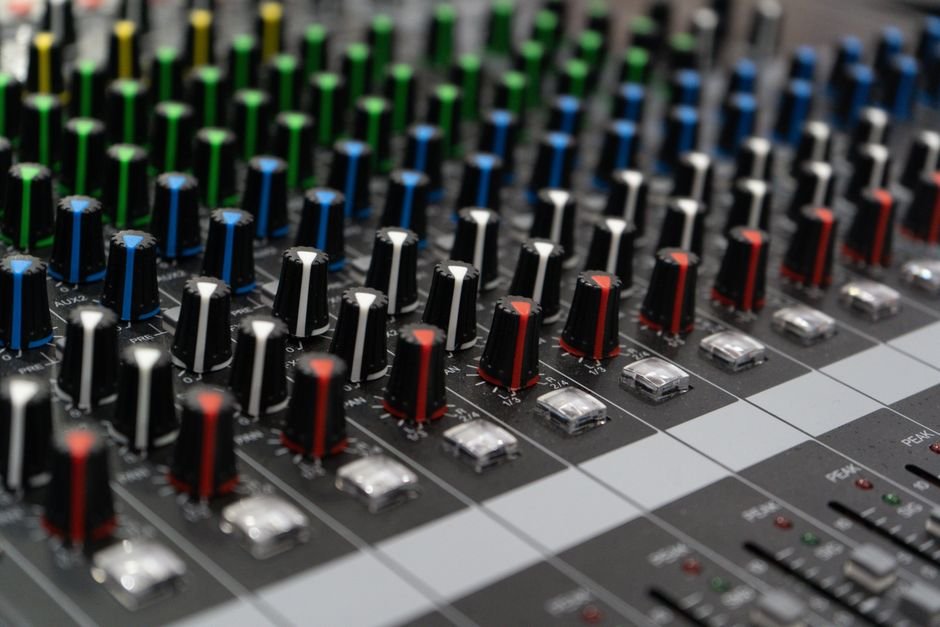
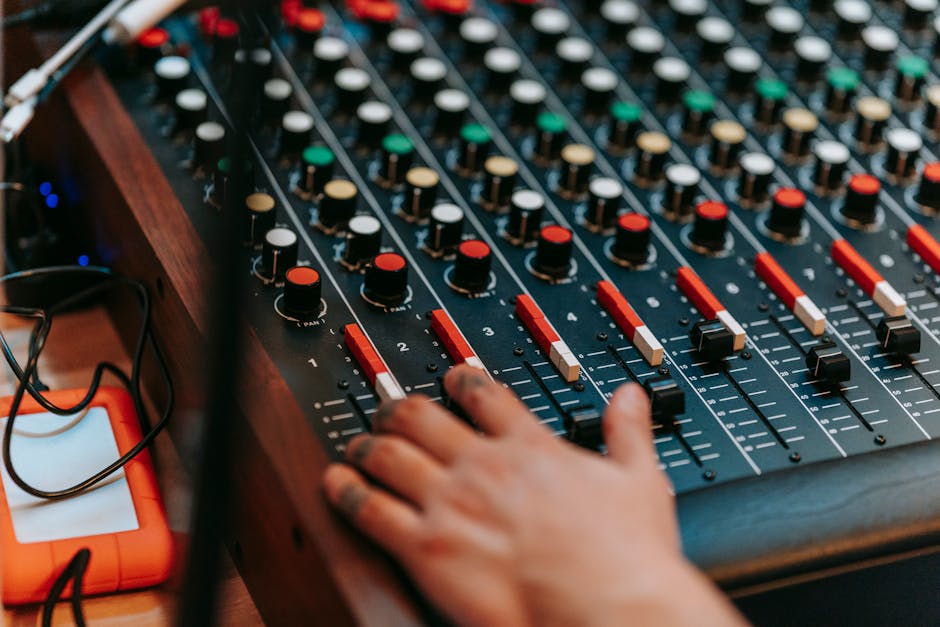
However, if you want more control over your sound, I recommend considering a more advanced audio mixer with built-in USB capabilities, like the Yamaha MG10XU. This mixer offers multiple channels, EQ adjustments, and allows you to mix different audio sources seamlessly. A dedicated mixer can provide more granular control, letting you balance game sounds, voice, and even background music.
Setting Up Your Gaming Audio Mixer
Once you’ve picked out your gear, the setup process is next. For a basic configuration with an audio interface, connect your microphone to the interface using an XLR cable. The interface should then connect to your computer via USB. Most modern broadcasting software, like OBS Studio, will recognize your interface right away, allowing you to capture audio directly.
For an audio mixer, the setup is similar, but you’ll also need to connect your game audio. This is often done through a secondary channel and may require additional cables depending on your console or PC setup. Don’t forget to adjust the levels on the mixer to ensure your voice is clear over any game sounds.
The key here is to keep your voice slightly louder than the game audio for clarity.

Dialing in Your Sound Quality
Adjusting your audio levels is where many new streamers tend to falter. Start with a dry audio mix and gradually bring in your game sounds and background music. Use your mixer to find a balance that doesn’t drown out your voice.
A good rule of thumb is to keep your voice level peaking around -10 dB to -6 dB, while the game sounds should average around -18 dB.
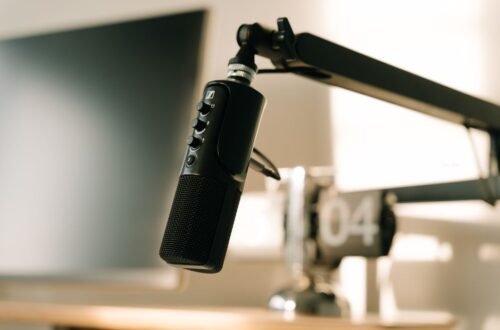
For the best sound quality, consider investing in a good-quality microphone that fits your setup style. A condenser microphone can capture clearer vocal details compared to a dynamic mic, especially if you’re in a quieter room. Brands like Audio-Technica and Shure produce excellent options that can significantly enhance the clarity of your voice, making it easier for your audience to stay engaged.
Making Use of Software and Post-Processing
Pairing your physical mixer with good broadcasting software is a game-changer. Software like Voicemeeter can help you manage multiple audio sources effectively, allowing for advanced control over your audio mix. It enables you to adjust sound levels in real time, creating a better listening experience for your viewers.
After your stream, using basic audio editing software can also help finalize your recordings. Tools like Audacity or Adobe Audition let you tweak audio levels, reduce background noise, and improve clarity. With the right mix and post-processing, your streams can achieve a polished, professional sound without the need for expensive equipment.
The Verdict: Which Setup Feels Right for You?
For streamers needing basic voice and simple game sound integration, a USB audio interface like the Focusrite Scarlett 2i2 is a solid choice. However, if your goal is to combine multiple audio inputs and outputs seamlessly, consider a mixer from Yamaha or Behringer that caters to advanced setups. Ensure you choose a solution that meets current requirements and allows for future expansion.
There is more on gaming setup elsewhere on the site.
We cover surround sound headphones explained in more depth separately.
Frequently Asked Questions
What is the best audio mixer for gaming?
The best audio mixer for gaming often depends on your specific needs and budget, but popular choices include the GoXLR and the Yamaha MG10XU. These mixers provide excellent sound quality, low latency, and various input/output options that cater to gamers and streamers alike.
How do I set up an audio mixer for streaming?
To set up an audio mixer for streaming, first connect your gaming console or PC audio output to the mixer using appropriate cables. Then, plug in your microphone and route the mixer output to your streaming software, ensuring you adjust levels and settings for both your voice and game audio for optimal balance.
Can an audio mixer improve gaming sound quality?
Yes, an audio mixer can significantly improve gaming sound quality by allowing precise control over audio levels, enabling you to mix various audio sources effectively. With features like EQ adjustments and effects, you can tailor the sound to your preference, enhancing your overall gaming experience.
Is an audio mixer necessary for gaming?
An audio mixer is not strictly necessary for gaming, but it can enhance the experience, especially for streamers and those who want more control over their audio setup. For casual gamers, a good headset may suffice, while serious streamers might benefit from the customization that a mixer provides.
Why is my gaming audio mixer not working?
Your gaming audio mixer may not be working due to several common issues, such as incorrect connections, muted channels, or improper settings in your streaming software. Checking all connections and ensuring that audio levels are set correctly can often resolve these problems.