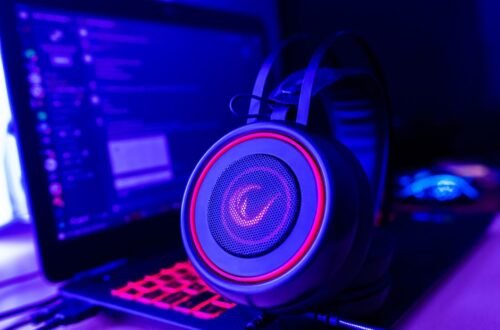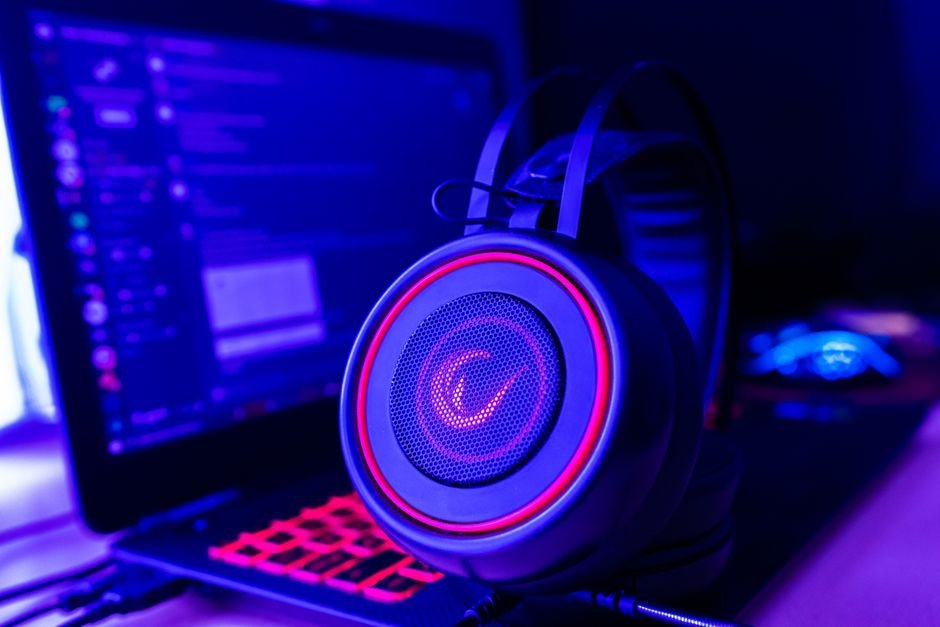
Around 70% of gamers prefer wired connections for their gaming headphones due to the straightforward setup and consistent audio quality. However, wireless options have gained popularity, especially with a price range starting at $50 for decent models, making them accessible. Understanding both types can help you make the right choice for your gaming experience.
Many users find themselves confused about the correct audio settings or the intricacies of Bluetooth connectivity. Trust me, once you understand the connection type for your headphones and navigate the PC sound control panel, you’ll have a smoother experience than you might expect. Let’s break it down step-by-step.

The Connection Types: Know What You Have
Before diving into the setup, it’s crucial to know what type of headphones you’re working with. Wired headphones typically connect through a 3.5 mm jack or USB, while wireless headphones usually depend on Bluetooth technology or a USB dongle. The choice between wired and wireless headphones will influence your setup process.
Wired headphones are often the best choice for serious gamers. They provide a consistent and reliable audio experience without worrying about battery life or connectivity issues. However, if you value freedom of movement and prefer a cleaner workspace, wireless headphones can be an excellent option, especially models with low latency to minimize sound delays. Select accordingly based on your preferences and usage frequency.
Step-by-Step Wired Headset Setup
Setting up wired headphones is straightforward. Here are the steps:
- Locate the headphone jack on your PC, usually found on the front or back panel.
- Insert the headphone plug into the jack until it fits snugly.
- Adjust your audio settings: right-click the sound icon in the system tray and select ‘Playback devices’ to ensure your new headphones are default output.
Once your headphones are connected, you might want to check for any enhancements in your audio settings. Many PCs have a sound control panel where you can fine-tune options such as equalization, bass boost, or virtual surround sound. Adjusting these settings can enhance your gaming experience significantly.
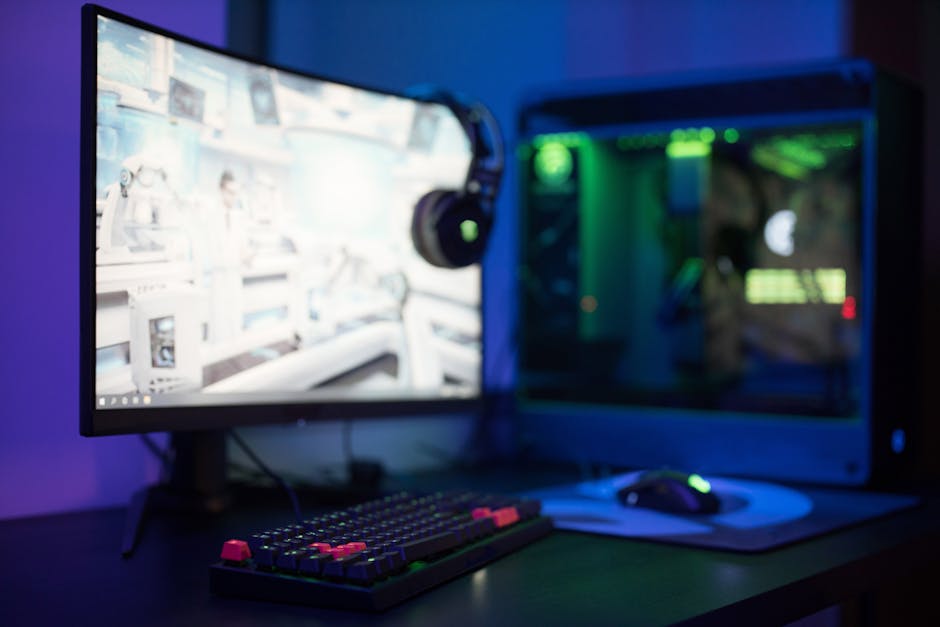
Connecting Wireless Headphones: Making Bluetooth Work
For wireless headphones, the process is a bit more intricate, but not difficult. Start by making sure your headphones are charged and turned on. Many models have a pairing mode, typically indicated by a blinking light.
- Open the Bluetooth settings on your PC (found in ‘Settings’ > ‘Devices’ > ‘Bluetooth & other devices’).
- Turn on Bluetooth if it’s not already activated.
- Click ‘Add Bluetooth or other device,’ then select ‘Bluetooth’ from the options.
- When your headphones appear in the list, select them to connect.
After pairing, it’s essential to ensure that your PC is routing audio to your headphones. Like before, check your audio settings in the sound control panel to confirm that your wireless headphones are set as the default output device. Keep an eye on sound latency, as some wireless models can introduce a slight delay, impacting your gaming experience.
Common Issues and Troubleshooting
Even with a successful connection, issues can arise. For wired headphones, ensure the connection is secure and try a different port if you experience any sound issues. In many cases, the problem lies in audio settings. Misconfigurations in audio inputs and outputs can lead to a frustrating lack of sound.
For wireless headphones, ensure you’re within range to maintain a stable connection. Bluetooth interference from other devices can also pose problems. If you experience choppy audio, disconnect and reconnect your headphones in the Bluetooth settings to refresh the connection. For any static or sound distortion, consider reviewing your sound card or driver settings, which can sometimes require updates.
If you’re still troubleshooting, you might find a detailed guide on fixing static noises and other common problems helpful. Check out my piece on how to resolve static issues with your headset here.
The Final Verdict: Wired vs. Wireless Headphones
For gamers who prioritize audio clarity and dislike interruptions, wired headphones are the best option. On the other hand, if you value freedom of movement and a clutter-free setup, consider investing in a wireless headset, keeping in mind that sound latency may vary based on the model you choose.
Frequently Asked Questions
How do I connect my gaming headset to my PC?
To connect your gaming headset to your PC, plug the audio jack into the corresponding audio ports on your computer (usually color-coded green for headphones and pink for microphone). For USB headsets, simply insert the USB connector into an available USB port. Once connected, you may need to configure your audio settings in the Control Panel or sound settings.
Can you use Bluetooth headphones for PC gaming?
Yes, you can use Bluetooth headphones for PC gaming, provided your PC has Bluetooth capability. However, keep in mind that there might be a slight audio delay due to the latency associated with Bluetooth connections, which can affect gameplay.
Why won't my gaming headset connect to my computer?
If your gaming headset won't connect to your computer, check that it is powered on and in pairing mode if it is wireless. Additionally, ensure the correct audio source is selected in the PC's sound settings and update any necessary drivers.
What's the best way to connect wireless headphones to a PC?
The best way to connect wireless headphones to a PC is via Bluetooth. Ensure that Bluetooth is enabled on your PC, then put your headphones in pairing mode and select them from the list of available devices in your PC's Bluetooth settings.
Is there a difference in audio quality between wired and wireless gaming headphones on PC?
Generally, wired headphones tend to offer better audio quality and lower latency compared to wireless options. However, advancements in wireless technology have significantly improved sound quality and latency in high-end wireless gaming headphonesmaking them a viable option for many gamers.