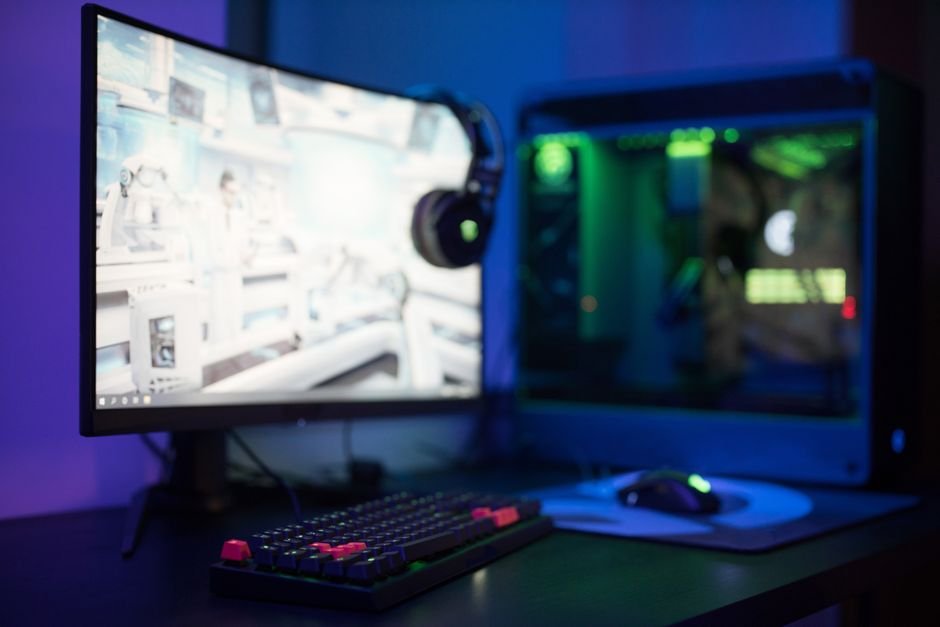
Over 30% of gamers struggle to connect their gaming monitor to a PC due to overlooked details. To avoid frustration, focus on the correct cables, display settings, and compatibility with your graphics card right from the start.
First, you’ll need to make sure you have the right cables and ports before diving in. Most modern gaming monitors and PCs support HDMI or DisplayPort connectionsbut verifying cable compatibility is essential to prevent issues down the line.

Choosing the Right Cables for Connection
To start, check the output options on your graphics card. If you have an RTX 3000 series or an AMD RX 6000 series, you’re likely to find HDMI 2.1 and DisplayPort 1.4 options. If you’re using an older graphics card, you may be limited to HDMI 2.0 or even DisplayPort 1.2, which could restrict your refresh rate or resolution.
For a high refresh rate gaming monitoryou might want to prioritize DisplayPort, as it typically supports higher bandwidth, allowing for higher resolutions and frame rates.
If you can, always choose a cable that matches the highest specification supported by both your monitor and graphics card. I’ve seen many people make the mistake of using older HDMI cables that can’t convey the higher bandwidth signals needed for 144Hz refresh rates at 1440p or 4K resolutions. Investing in premium cables can drastically enhance performance.
Step-by-Step: Connecting Your Gaming Monitor
Once you have the correct cable, the connection process is simple. First, plug one end of the cable into your graphics card output and the other end into your monitor input. If you’re connecting through a DisplayPort, ensure you use the “DisplayPort” option on your monitor’s input settings. For HDMI connections, just select the appropriate HDMI input on the monitor.
After that, turn on your PC and monitor. If everything is connected correctly, your PC should automatically detect the monitor. If it doesn’t, you might need to adjust the display settings manually through the Windows control panel. Right-click on the desktop, select “Display settings,” and make sure your PC recognizes the new monitor.
If you’re looking to set up a dual monitor arrangement, additional settings will enable you to adjust both monitors effectively.

Adjusting Display Settings for Optimal Performance
After connecting the monitor, you may need to adjust your display settings for optimal performance. Go into your graphics control panel, which should be either NVIDIA Control Panel or AMD Radeon Settings depending on your hardware. From there, ensure your refresh rate is set to the maximum supported by your monitor. For gaming monitors, this is typically 144Hz or higher.
If you also want to use features like G-Sync or FreeSync, make sure they are enabled in the settings as well. These technologies help eliminate screen tearing and provide a smoother experience, particularly in fast-paced games. Many users overlook these settings, leading to suboptimal gaming experiences.
Conclusion: Achieve Seamless Gaming Experiences
For gamers looking to maximize their experience, the ASUS ROG Swift models are highly recommended due to their advanced features and compatibility with high-end graphics cards. Budget-conscious players may prefer AOC monitors, offering decent performance without breaking the bank.
Frequently Asked Questions
Why won't my gaming monitor connect to my PC?
There could be several reasons why your gaming monitor won't connect to your PC, such as faulty cables, incompatible ports, or incorrect input settings on the monitor. Ensure that the monitor is powered on, the correct input source is selected, and try using a different cable or port if available.
How do I set up dual monitors for gaming?
To set up dual monitors for gaming, first connect both monitors to your PC using appropriate cables. Then, in the display settings of your operating system, choose to extend or duplicate your display, and arrange the monitors to your preference for an optimal gaming experience.
Can a gaming monitor connect via USB-C?
Yes, many modern gaming monitors support USB-C connections, which can transmit both video and power through a single cable. Make sure your PC has a compatible USB-C port that supports video output to establish this connection.
What settings optimize a gaming monitor?
To optimize a gaming monitoradjust settings such as refresh rate, response time, and brightness according to your preference and the game's requirements. Additionally, enabling features like FreeSync or G-Sync can enhance your gaming experience by reducing screen tearing.
Is HDMI or DisplayPort better for gaming?
DisplayPort is often considered better for gaming due to its higher bandwidth support, enabling features like higher refresh rates and resolutions. However, HDMI can also deliver strong performance for most gaming setups, especially with the latest HDMI versions.
If you’re unsure how to connect gaming monitor to PC, there are many resources available to guide you through the setup process.