Around 30% of gamers experience issues with their headset microphones, leading to frustrating gaming sessions. Focusing too much on audio quality can often leave microphone problems unaddressed, which impacts communication in multiplayer games. Understanding how to resolve these mic issues is crucial for enhancing your gaming experience.
Thorough troubleshooting can help resolve common microphone problems. In my experience, problems often arise from audio settings, hardware issues, or simple user errors. Let’s explore the most common gaming headset mic issues and how you can easily resolve them without needing to spend extra money.

Common Gaming Headset Mic Issues
The first step to addressing microphone issues is to understand what problems might be occurring with your headset. Here are some common issues:
- Mic not detecting input: Sometimes, the microphone appears to be plugged in but doesn’t pick up any sound. This is often a connectivity issue.
- Low audio quality: If your friends say they can barely hear you or if your voice sounds muffled, the mic might be too far from your mouth or experiencing interference.
- Static or buzzing noises: This could stem from a faulty cable, interference from other electronic devices, or an issue within the headset itself.
- Microphone muted accidentally: It’s surprisingly easy to accidentally mute your mic, especially if you have a headset with a built-in mute button.
Addressing these issues typically requires assessing both hardware and software components. Ignoring the wrong settings can extend your frustration for longer than necessary.
Step-by-Step Troubleshooting Guide
Once you’ve identified an issue, follow these troubleshooting steps to fix it. Start with these fundamental checks before moving on to more technical solutions.
1. **Check Your Connections**: Ensure the headset is properly connected. For wired headsets, disconnect and reconnect the jack securely. For wireless options, verify that the headset is charged and connected through Bluetooth or a USB dongle.
2. **Audio Settings**: Head to your audio settings on your PC or console. Right-click the audio icon in the system tray to access “Sounds” or “Audio Devices.” Under the “Recording” tab, ensure your headset mic is set as the default device. Adjust input levels here, as a low-volume setting can lead to poor audio capture.
3. **Update Drivers**: Sometimes, outdated drivers can lead to microphone issues. Check the manufacturer’s website for the latest audio drivers for your headset and install them. This could improve compatibility and fix any bugs.
4. **Test with Different Applications**: If your headset mic works in some applications but not others, it could be an app-specific setting. Test it with various apps to identify where the problem lies.
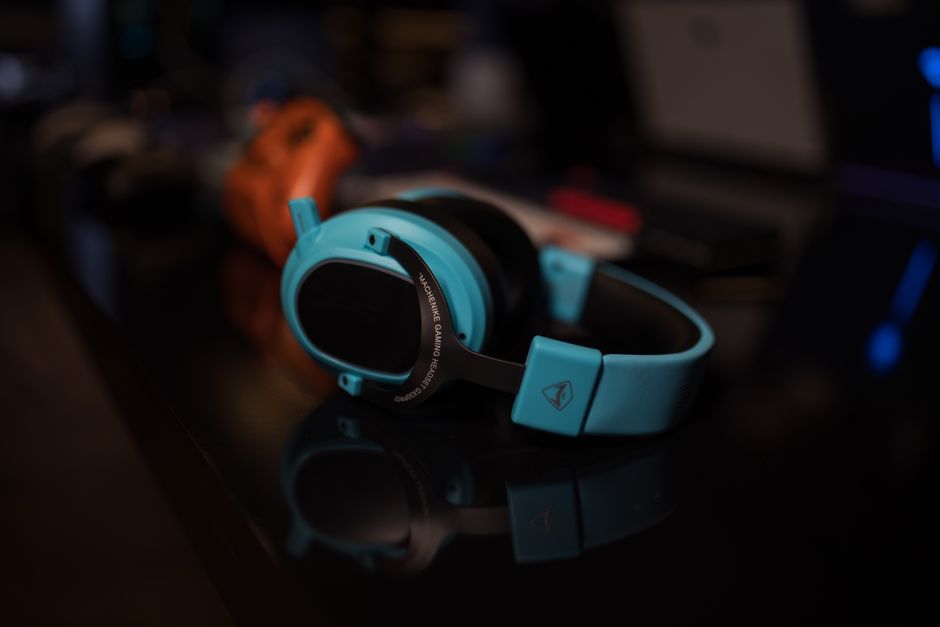
5. **Inspect Hardware**: If none of the above resolves the issue, inspect the mic and cable for physical damage. Ensure the boom mic isn’t obstructed and verify that there are no visible breaks in the cord.
6. **Check Compatibility**: Make sure your gaming headset is compatible with your device. Some headsets have specific requirements for consoles or PCs that need to be met for optimal performance.
Advanced Fixes for Persistent Issues
If you’ve tried everything above and your mic is still not performing, consider these more advanced options. Sometimes software and settings can be a little more finicky.
1. **Use a USB Sound Card**: If you’re using a wired headset and the mic isn’t working, a USB sound card can bypass issues related to your motherboard’s audio jack. They are relatively inexpensive and can significantly improve headset compatibility.
2. **Change Power Settings**: On a PC, adjust your power settings for USB devices. Sometimes, power-saving settings can turn off certain devices connected, including your headset. Make sure USB devices aren’t automatically turned off when not in use.
3. **Reset to Factory Settings**: If using a wireless headset with software, perform a factory reset. This can help eliminate any corrupted settings that might be affecting mic performance.
Monitoring for Future Issues
Once you have resolved the issue, it’s a good idea to stay vigilant. Regularly check audio settings after updates or when switching between devices to ensure your mic settings remain intact. Many gamers overlook audio settings when setting up their rigs or after a software update. Make it a habit to double-check these settings.
This practice not only saves you time but also ensures constant communication quality with your fellow gamers.
For anyone experiencing ongoing audio issues, consider moderating usage between wired and wireless options, as I’ve noticed that some environments favor one over the other. Keeping up with the latest updates from both your console and your headset manufacturer can also help you prevent future disruptions. If you’re looking for more help, learn how to fix gaming headset mic issues.
If you want more details on fixing general audio issues, I recommend checking out my guide on Audio Troubleshooting for Gamers.
Final Recommendation
For those looking for the best solution, a USB gaming headset often provides superior performance and reliability, especially for competitive gamers. However, if you're on a budget, consider checking audio settings and connections first or investing in a quality external microphonewhich suits casual players who need clear audio without the fuss.
Frequently Asked Questions
Why is my gaming headset mic not working?
Your gaming headset mic may not be working due to various reasons, including faulty connections, muted settings, or hardware issues. Additionally, it could be related to incorrect input settings on your device or software conflicts.
How do I troubleshoot my headset mic?
To troubleshoot your headset mic, start by checking physical connections and ensuring that the mic is properly plugged in. Next, test the mic on a different device and check audio settings for any muted or low volume options.
Can software updates affect microphone performance?
Yes, software updates can affect microphone performance as they may include bug fixes, driver enhancements, or changes that improve how your device interacts with peripherals. It's important to regularly check for and install updates to ensure optimal performance.
What headset settings affect mic quality?
Headset settings that affect mic quality include volume levels, boost options, and noise suppression features. Additionally, settings within your operating system or game software like input device selection and sensitivity can significantly influence mic performance.
Is my headset mic compatible with my device?
To determine if your headset mic is compatible with your device, check the connection type (USB, 3.5mm jack, etc.) and consult the manufacturer's specifications. Additionally, ensure that your device supports the headset's audio format and any necessary drivers are installed.