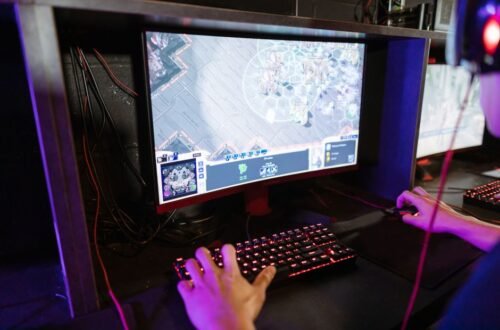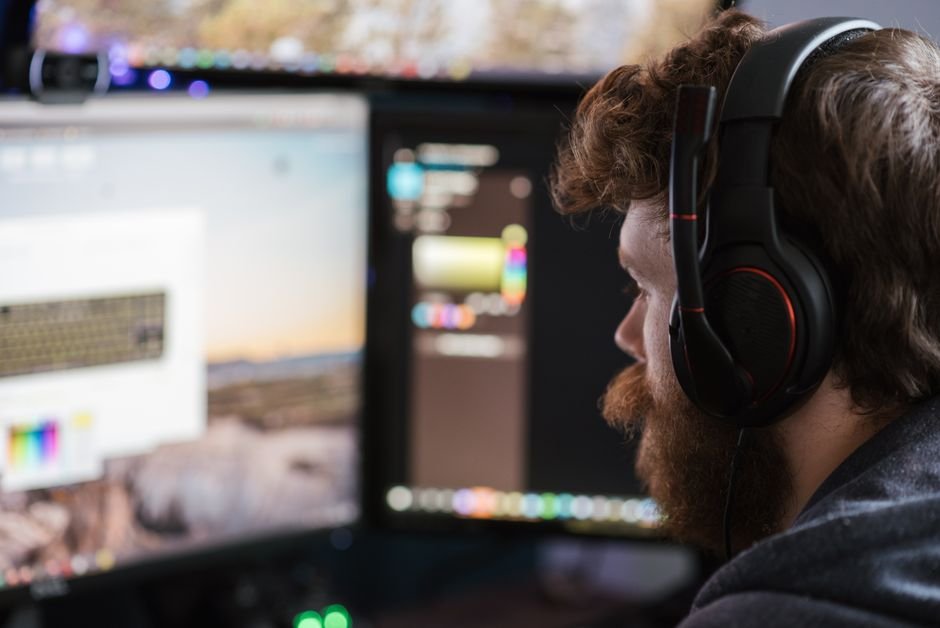
Setting up multiple gaming monitors can range from $200 to $1,000, depending on the choices you make. Many gamers encounter challenges like limited display outputs on their graphics cards or incorrect settings during installation. Here's a practical guide to help you tackle those issues and enhance your gaming setup.
First off, let’s address the primary question: how to set up multiple gaming monitors? You’ll need to consider the types of monitors you want, ensure your graphics card can support them, and manage cables efficiently. From my experience, getting this right not only boosts your gameplay but can also elevate your overall productivity if you use the same setup for work.
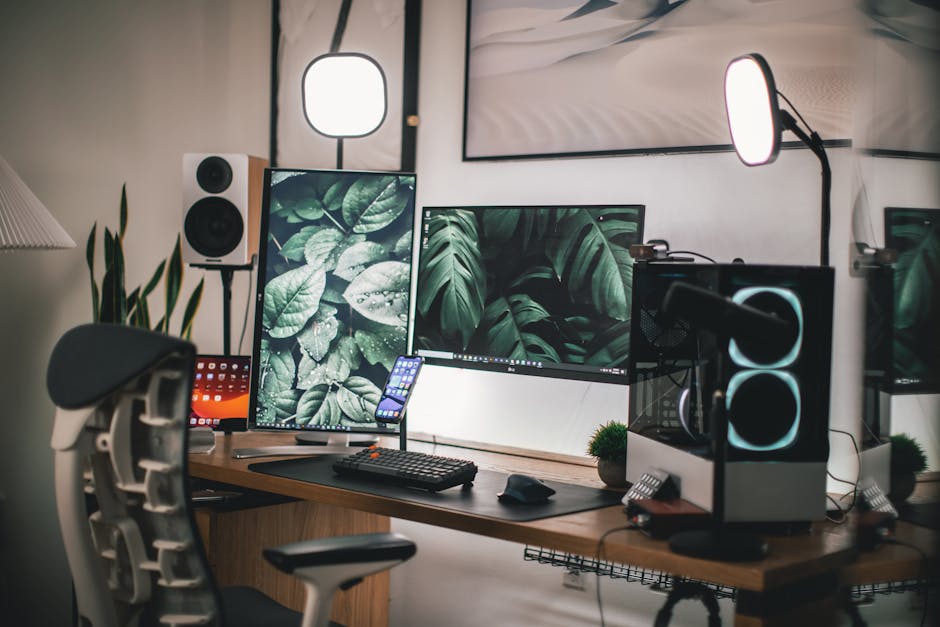
Choosing the Right Monitors for Gaming
When selecting monitors, I recommend looking for models with a refresh rate of at least 144 Hz. This ensures a smoother gaming experience, especially in fast-paced games. My personal favorite setup features two 27-inch monitors with a resolution of 2560×1440 pixels, which offers fantastic clarity without straining the graphics card’s performance.
Consider the type of panel technology as well. IPS panels typically offer better color accuracy and viewing angles, which is crucial for an immersive visual experience. While TN panels are faster and more suited for competitive gaming due to reduced response times, they often sacrifice color quality.
If you’re investing in a multi-monitor setup, I strongly advise choosing at least one IPS monitor for vibrant colors.
Checking Your Graphics Card Settings
Next, evaluate your graphics card. Ensure it has enough ports to connect multiple monitors. Most modern GPUs come equipped with multiple HDMI and DisplayPort outputs, but you may need adapters if your monitors have different inputs. Once everything’s connected, dive into the graphics card settings. This is where many people miss critical configurations.
Use the graphics card software, like NVIDIA Control Panel or AMD Radeon Settings, to recognize and set up the monitors correctly. Here, you can extend the display across all monitors, allowing you to use them as one seamless screen. Make sure to change the resolution settings per monitor, as each may have different optimal resolutions.

Step-by-Step Monitor Setup Process
To get started, follow these steps: First, place your monitors on your desk in a comfortable arrangement. For a typical side-by-side arrangement, it’s crucial to have the same height for both monitors, which not only looks better but also makes transitioning between screens easy.
Next, connect the monitors to your PC. Power them up and check if your system recognizes them. If not, revisit the graphics settings to make sure they are enabled. You may also use Windows display settings to adjust the orientation, scaling, and resolution for each screen. In my experience, dual landscape modes offer the best configuration for gaming.
Managing Cables Efficiently
Cable management is often overlooked in multi-monitor setups. Invest in cable clips or a cable sleeve system to organize the tangled mess behind your desk. Not only does it help keep aesthetics on point, but it also protects cables from wear and tear caused by friction or environmental factors.
Consider using USB hubs or power strips that can be easily mounted under your desk. This will allow for more accessible power and data connections without cluttering your workspace. I’ve found that this small investment pays off in spades, making future adjustments easier.
Final Adjustments and Gaming Experience
Once everything is connected and organized, it’s time to dive into your in-game settings. Many games allow you to configure your display settings, where you can choose to span across all monitors or choose specific settings for each. Testing out different configurations will help you find what feels best.
Don’t forget to enable features like V-Sync or FreeSync if your monitors support them. These features help prevent screen tearing and ensure a smoother experience across multiple screens, especially during high-action sequences.
Verdict on Multi-Monitor Gaming Setups
For those who prioritize performance and visual real estate, a dual-monitor setup is highly recommended, especially for strategy or simulation games. Alternatively, if you often switch between gaming and productivity tasks, a three-monitor arrangement can significantly boost your workflow, allowing for easy multitasking. If you’re interested in how to set up multiple gaming monitors, this arrangement is one of the most effective methods.
Related reading: room vs minimalist.
Frequently Asked Questions
What is the best way to set up multiple monitors for gaming?
The best way to set up multiple monitors for gaming is to position them in a way that they create a continuous display, typically by placing them at a slight angle towards the viewer. Ensure that the screens have the same resolution for a more seamless experience, and use a capable graphics card that supports multiple outputs.
How do I optimize settings for multiple gaming monitors?
To optimize settings for multiple gaming monitors, go into your graphics card control panel and set the display configuration to extend the desktop. Adjust the resolution and refresh rates to match across all monitors for a unified experience, and configure individual monitor settings such as brightness and color balance as needed.
Can I mix different brands for multiple monitor setups?
Yes, you can mix different brands for multiple monitor setups, but it's best if they have similar specifications, such as resolution and refresh rates, to ensure visual consistency. Just be aware that color calibration may be necessary to match the displays.
Why is my second monitor not displaying?
Your second monitor might not be displaying due to a few common issues: check that all cables are securely connected and that the monitor is powered on. Additionally, ensure that your computer recognizes the monitor through display settings, and try updating your graphics drivers if the issue persists.
How can I manage cables in a multi-monitor setup?
To manage cables in a multi-monitor setup, use cable management solutions like clips, sleeves, or ties to bundle and secure the cables neatly. Consider routing the cables behind your desk or monitor stands to minimize clutter and improve the overall aesthetic.