Over 60% of Xbox One users struggle with audio setup, missing out on an enhanced gaming experience. Misconfigured audio can lead to frustrating gameplay and a lack of immersion, as I've learned through trial and error. Properly adjusting your audio settings can make all the difference.
A primary factor is understanding the different audio output settings available. Many players default to the incorrect options without realizing that the right configuration can vastly improve sound quality. Let’s delve into the details of setting up your Xbox One audio properly.
Common Audio Output Settings to Consider
The first step in your Xbox One audio setup is to configure the audio output settings directly in the console. Go to Settings > General > Volume & audio output. Here, you will find several options. Most users find it beneficial to experiment with these settings:
- HDMI Audio: This option is typically set to “Stereo uncompressed” for basic setups but can be switched to “Bitstream out” if you’re using a compatible receiver that supports surround sound. This is a must if you have a surround sound system.
- Optical Audio: If you are using optical audio output, ensure that it is properly configured as “Bitstream out” to enable Dolby Digital sound formats.
- Speaker audio: For those not using an external audio system, “Stereo uncompressed” is usually preferable. However, if you’re using external speakers or a soundbar, consider configuring these as well to get the best audio experience.
One common mistake I see is people neglecting to check their audio settings after a system update. If your sound suddenly changes, revisit these settings. Optimal configurations can also differ between games, so don’t hesitate to tweak them based on your current game or setup.
Configuring Headphones and Speakers
When setting up headphones or speakers, skip generic settings that many assume are sufficient. Instead, dig deeper into the specific settings for your hardware. If you are using a gaming headset with a microphone, ensure that the headset is recognized by the system. Navigate to Settings > Devices & connections > Accessories, select your headset, and adjust the audio and headset settings.
You want to enable features like “Headset mic” so your friends can hear you clearly during multiplayer sessions.
If you’re using a surround sound speaker systemgo beyond simply connecting your HDMI cable. It’s also wise to configure the audio settings on your receiver to match the console output settings. You should avoid stereo-only settings in this case as you will miss out on the spatial audio experience.
Look into Dolby Atmos if you want to take sound immersion to the next level; it offers dynamic audio that adjusts as the action unfolds in your game.
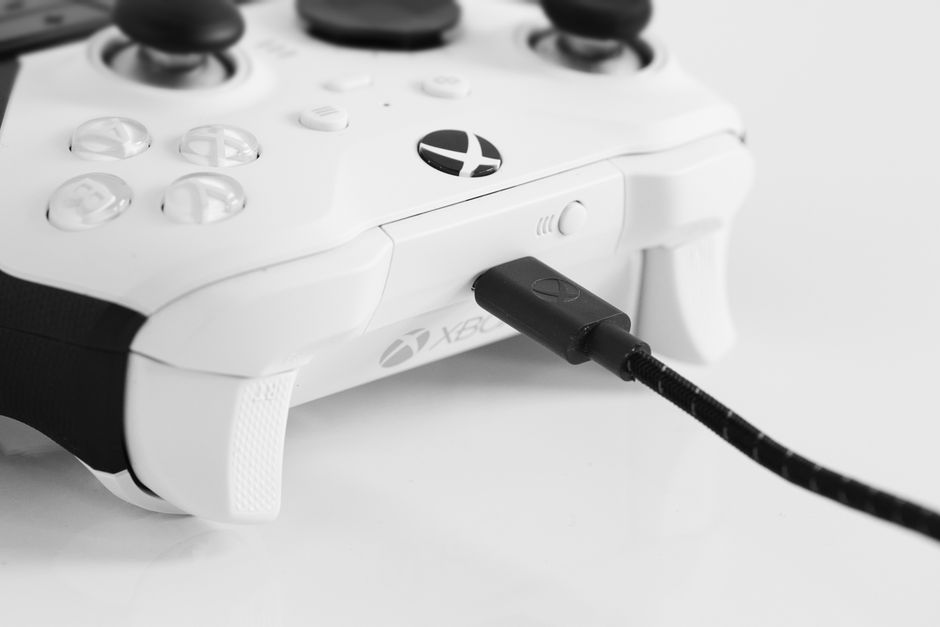
Adjusting Sound Quality on the Xbox One
Even after setting up your hardware, you may notice that sound quality can vary. To enhance this, ensure you are familiar with the audio presets available in your Xbox One settings. Look for “Device properties” under Volume & audio output and explore sound quality adjustments. Many setups benefit from using “Windows Sonic for Headphones” which is available through the Xbox interface.
This feature allows for virtual surround sound through your headphones, enriching the overall audio experience.
Moreover, if you find that voice chat is too loud or quiet compared to game sounds, Xbox One allows for personal adjustments in that regard as well. In the party menu, you can manage the sound levels of individual members, which can make a huge difference when you’re strategizing in a multiplayer match.
Exploring HDMI Audio Options
Choosing the right HDMI audio option can profoundly affect how you experience sound in games. If you’re gaming on a 4K TV and utilizing high-definition audio formats, be sure to select “Bitstream out” in the HDMI audio settings. This allows the Xbox to send uncompressed audio signals, essential for high-performance gaming audio systems.
If you’re using an AV receiverensure it supports the audio formats you intend to use, such as Dolby TrueHD or DTS-HD Master Audio. Using these formats can make game soundtracks and effects more vibrant and realistic. If your receiver does not support these formats, you could encounter audio dropouts or distortion.
In that case, consider upgrading to a receiver that can handle modern audio formats.

Troubleshooting Common Sound Issues
Despite the best setup efforts, sound issues can still arise. If you ever encounter no audio output, check the connections first, cables may be loose or improperly seated. Also, confirm that the correct audio output is selected in the Xbox settings. A common scenario is having the audio routed to an output not currently in use, such as a headset instead of your sound system.
If sound quality seems off, ensure that your devices are set to the right audio formats. Check if your headset or audio output device is compatible with high-definition audio formats, and test various configurations to identify what provides the best quality. Finally, keep your Xbox One software updated. Sometimes, sound issues are resolved in newer patches that improve overall performance.
Final Thoughts on Xbox One Audio Setup
In summary, many gamers overlook the potential of their gaming setups by neglecting audio configuration. To maximize your Xbox One experience, dive into the audio settings and ensure everything is set up correctly. Experiment with your configurations until you find the most compelling audio setup for your style.
Whether you’re enjoying complex soundscapes in action games or jamming out to game soundtracks, a little investment in your audio settings goes a long way.
Getting your Xbox One audio setup right means not only following the configuration steps but also paying attention to the quality of your equipment and the compatibility of your devices. For a deeper look into optimizing audio, check out my article on Xbox One audio setup guide.
Frequently Asked Questions
How do I set up audio on Xbox One?
To set up audio on Xbox One, navigate to the Settings menu, select 'General,' then go to 'Volume & audio output.' Here, you can choose your audio output settings, including options for HDMI, optical audio, and headphone settings.
Why is my Xbox One sound not working?
If your Xbox One sound is not working, check that your audio output settings are properly configured in the settings menu. Additionally, ensure that your TV or audio system is set to the correct input and that the volume is turned up.
Can I use Bluetooth headphones with Xbox One?
No, Xbox One does not support Bluetooth audio devices directly. However, you can use a dedicated Xbox wireless headset or connect Bluetooth headphones through the Xbox Adaptive Controller or a third-party Bluetooth transmitter.
What are the best sound settings for Xbox One?
The best sound settings for Xbox One typically involve selecting 'Stereo uncompressed' for HDMI audio and ensuring that 'Windows Sonic for Headphones' is activated for a better spatial audio experience. Adjusting the volume levels for different outputs to suit your preferences can also enhance your experience.
How to improve audio quality on Xbox One?
To improve audio quality on Xbox One, consider using a high-quality headset or external sound system, and make sure to adjust the audio settings under 'Volume & audio output' for optimal configuration. Experimenting with audio enhancements like Dolby Atmos or Windows Sonic can also significantly elevate the sound experience.