Over 70% of streamers ignore their audio settings in OBS, which often leads to subpar broadcast quality. By adjusting microphone levels and audio bitrates, you can significantly improve how your audience engages with your content.
I’ve spent a lot of time honing the audio settings for my own streams, and I want to share the best audio settings for streaming on OBS. Here’s a list that should really help you dial in your sound.
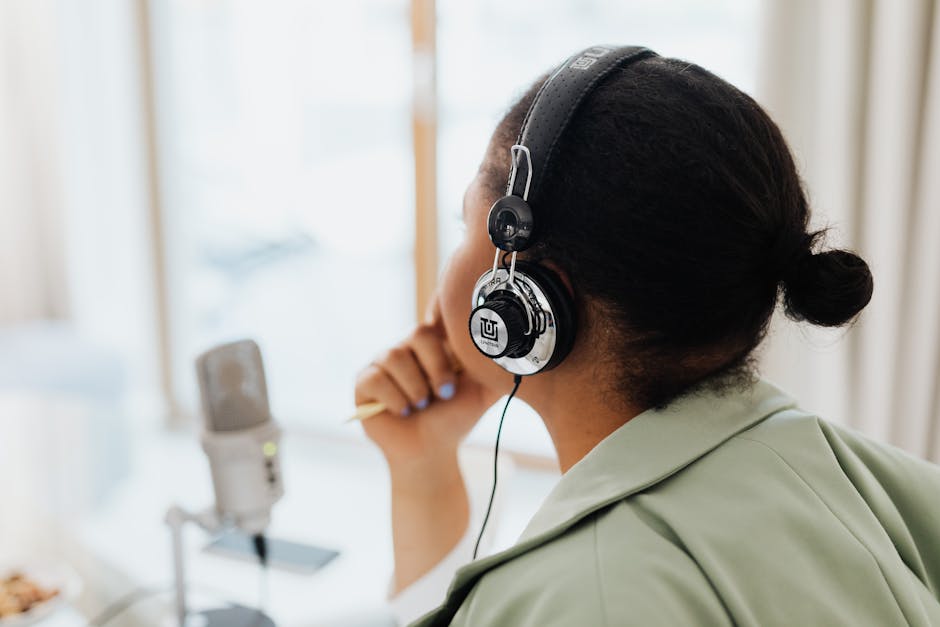
1. Audio Bitrate: Find Your Sweet Spot
Choosing the right audio bitrate is essential for maintaining sound clarity without overloading your upload speed. For most gaming streams, an audio bitrate of 160 kbps is a solid starting point, delivering good quality without sacrificing too much bandwidth. If you have plenty of upload speed, you could even bump it up to 192 kbps or 320 kbps for higher quality.
Experiment with these settings until you discover what works best for you based on your streaming platform.
Keep in mind that Twitch generally allows up to 160 kbps, while YouTube may accommodate higher bitrates. Confirm the limits of your platform first!
2. Microphone Configuration: Optimize for Clarity
When configuring your microphone, focus on ensuring clear audio. Use a directional microphone to reject background noise and enhance your voice quality. Aim for a gain level around -12 dB; this prevents distortion while keeping your voice clear. If you’re using a USB microphoneensure it’s set as the default device in both OBS and your computer settings.
To avoid echo and feedback, monitor your audio using headphones rather than speakers. This will help maintain clean sound during your streams.
3. Audio Monitoring: Don’t Skip This Step
Audio monitoring lets you hear how your stream sounds in real time, enabling quick adjustments as needed. In OBS, enabling monitoring for your microphone is crucial. Set it to “Monitor and Output” to hear the same output your audience hears. This ensures you catch any audio issues before viewers do.
Remember, a slight lag can occur, so adjust your monitoring settings based on your preference and setup.
4. Noise Gate: Eliminate Unwanted Sounds
Using a noise gate can significantly improve your audio by cutting out background noise when you’re not speaking. Adjust the close threshold to just above the ambient noise level of your environment, so it activates only when you speak. Set the open threshold around -30 dB to -20 dB for more consistent performance.
Be cautious not to close the gate too tightly, as it might cut off the start of your sentences. Testing and tweaking this setting can make a noticeable difference.
5. Gain Control: Manage Volume Levels Efficiently
Gain control keeps your audio levels consistent. In OBS, you can adjust the gain directly on the audio mixer to ensure your voice doesn’t fade away or peak during your stream. Start with a level that keeps your average volume around -12 dB, which is the sweet spot for most streams.
Be mindful of any in-game audio, too. You may need to lower or raise your game’s audio in relation to your voice to maintain a good balance.
6. Audio Filters: Enhance Your Stream Quality
Adding audio filters like compressor and limiter can help maintain a polished sound. A compressor adjusts the dynamic range of your audio, making loud sounds quieter and quiet sounds louder. Pair this with a limiter to ensure your audio never peaks above 0 dB, thus preventing distortion.
When applying these filters, it can be helpful to adjust settings in small increments and test the results before going live. This will save you from unexpected audio problems during your stream.
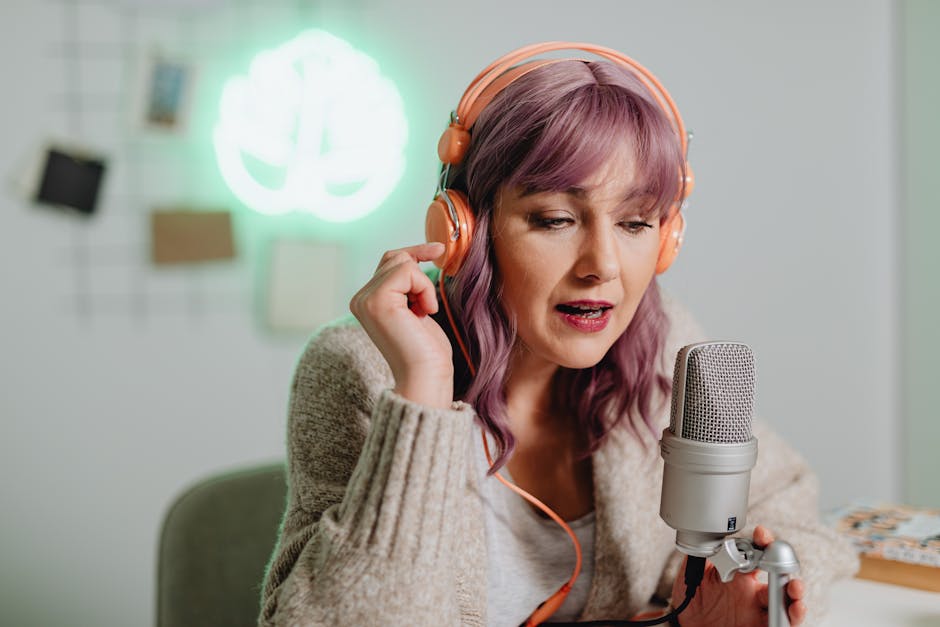
7. Stream Sync: Keep Video and Audio Together
One of the worst experiences for your audience is a lag between the video and the audio. To achieve perfect sync in OBS, you can use the ‘Sync Offset’ option. If you notice a delay, start by adjusting the audio sync offset by 100-200 milliseconds, and fine-tune until it matches your video perfectly.
Doing a test stream can make this adjustment easier, as you can observe and correct sync issues before going live.
How to Choose
Prioritize a sample rate of 48 kHz and a bitrate of at least 160 kbps for high-quality streaming audio. This setup works well for most creators, while those focusing on music may benefit from higher bitrates for richer sound.
Worth reading alongside this: streaming setup gear.
Frequently Asked Questions
What are the best audio settings for OBS streaming?
The best audio settings for OBS streaming include setting your audio bitrate to 160 kbps for good quality without excessive bandwidth usage. Additionally, use a sample rate of 44.1 kHz and ensure that your audio channels are set to stereo to enhance the listening experience for viewers.
How do I optimize OBS audio for gaming?
To optimize OBS audio for gaming, make sure to capture the game audio and your microphone separately by using the audio mixer feature in OBS. Adjust the volume levels to balance game sound effects with your voice, typically keeping game audio around -10 dB and your microphone around -15 dB.
Can OBS improve my audio quality?
Yes, OBS can improve your audio quality by allowing you to adjust settings such as bitrate, sample rate, and enabling filters like noise suppression or compressor. Using high-quality audio sources and proper settings can significantly enhance the output quality of your stream.
Why is my OBS audio cutting out?
Audio cutting out in OBS may be caused by low bandwidth, improper audio buffering settings, or conflicts with other audio devices. Ensure that your audio bitrate is appropriately set, check your internet connection, and consider using buffering options to prevent drops.
How do I fix audio delay in OBS?
To fix audio delay in OBS, access the Audio Properties for your audio source and adjust the sync offset in milliseconds. You may need to experiment with the delay values to match your audio with the video, especially if using a USB microphone or external mixer.
To learn more about the best audio settings for streaming on OBS, check out this resource.